背景
Win8 註冊表調整 Scaling 已失效,需透過 ATI/AMD Catalyst Control Center 設定縮放。
操作步驟
- 桌面空白處右鍵 → 「Catalyst Control Center」。
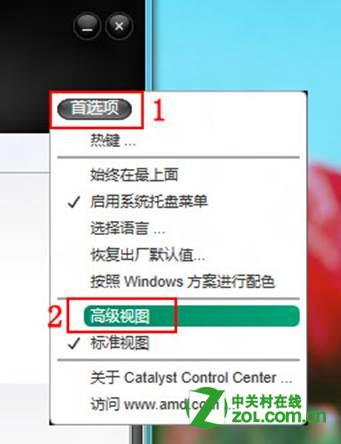
- 右上角「偏好設定」 → 「進階檢視」。
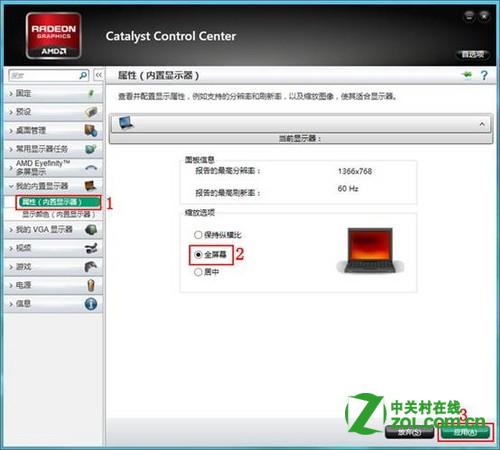
- 左側選單「我的內建顯示器」 → 「屬性 (內建顯示器)」 → 右側「縮放選項」選擇「全螢幕」 (預設為「保持長寬比」) → 「套用」。
重要提醒
- 若縮選項為灰色不可選,請先將解析度調整為非原生/非建議值 → 設定縮放 → 再改回最佳解析度,設定將保留。
- 不同驅動版本介面略有差異,請參考對應版本操作。
- 測試環境:Win8 Release Preview + 星際爭霸 1.16 成功全螢幕執行。