Windows 8 移除傳統開始選單,關機操作變得不直觀。本文教您在桌面建立各種電源操作捷徑,並可釘選到開始畫面或工作列。
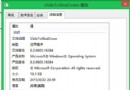
shutdown.exe -s -t 0 →「下一步」→命名 (如「關機」) →「完成」。| 功能 | 指令 | 說明 |
|---|---|---|
| 關機 | shutdown.exe -s -t 0 | -s 關機,-t 0 立即執行 |
| 重新開機 | shutdown.exe -r -t 0 | -r 重開機 |
| 鎖定電腦 | rundll32.exe user32.dll,LockWorkStation | 或直接按 Win+L |
| 休眠 | rundll32.exe powrprof.dll,SetSuspendState | 需先啟用休眠功能 |
| 睡眠 | rundll32.exe powrprof.dll,SetSuspendState 0,1,0 | 進入睡眠模式 |
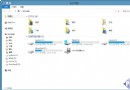
右鍵建立好的捷徑 →「釘選到開始畫面」或「釘選到工作列」,即可像傳統開始選單一樣快速存取。
透過捷徑指令,您可以在 Windows 8 桌面、開始畫面、工作列建立直觀的電源操作按鈕,大幅提升操作效率。