滑鼠右鍵選單是 Windows 最常用的互動介面。透過註冊表,您可將記事本、QQ、截圖工具、滑動關機等常用程式直接加入桌面/資料夾背景右鍵選單,一鍵啟動,大幅提升效率。
regedit 開啟登錄編輯器。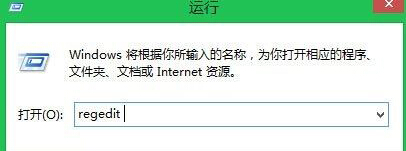
HKEY_CLASSES_ROOT\Directory\Background\shellshell 上右鍵 →「新增」→「機碼」,命名為程式顯示名稱(如 Notepad、QQ、SnippingTool、SlideToShutDown)。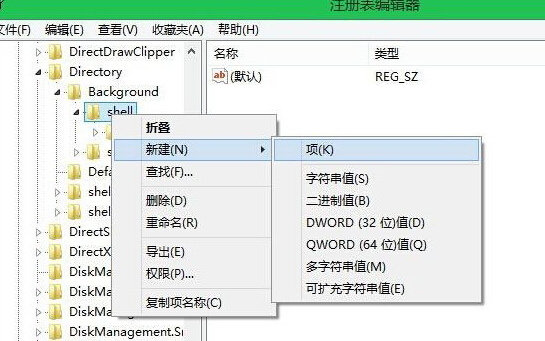
command。command 的「預設」字串值,輸入程式完整路徑(含參數)。範例:記事本: "C:\Windows\System32\notepad.exe"
截圖工具: "C:\Windows\System32\SnippingTool.exe"
滑動關機: "C:\Windows\System32\SlideToShutDown.exe"
QQ: "C:\Program Files (x86)\Tencent\QQ\Bin\QQ.exe"
shell:AppsFolder 找到現代應用程式,右鍵 →「建立捷徑」 → 取得捷徑目標。在程式機碼(如 Notepad)下新增字串值 Icon,值資料設為程式路徑或 .ico 檔案路徑,右鍵選單即會顯示圖示。
C:\Program Files (x86)\。