BitLocker 簡介
Windows 8 專業版/企業版內建,可加密固定/移動磁碟機(移動裝置對應 BitLocker To Go)。普通版/RT 版不包含。格式化加密磁碟機會導致資料與加密保護遺失。
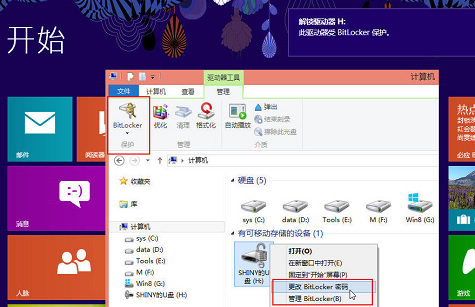 BitLocker 磁碟機加密介面
Win8 升級重點:僅加密已用空間
Win7 需加密整個磁碟區(含空白空間),耗時極長。Win8 可選「僅加密已用磁碟空間」,大幅加快加密速度。
進入 BitLocker 介面的多種途徑
- 控制台 → 系統與安全性 → BitLocker 磁碟機加密。
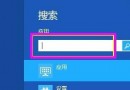
- Win+W 搜尋「BitLocker」→ 選擇「BitLocker 磁碟機加密」或「BitLocker 管理」。
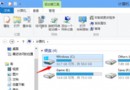
- 檔案總管中右鍵磁碟機 → 「開啟 BitLocker」。
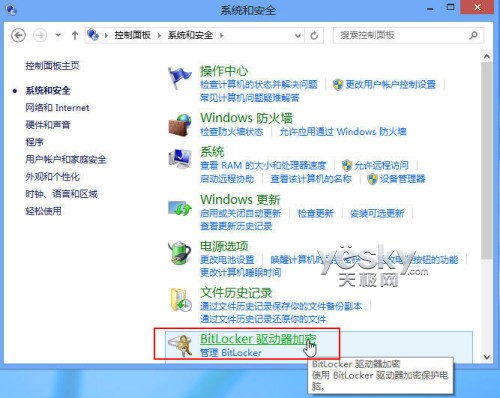 從控制台進入
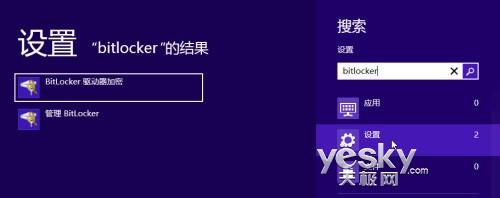 從搜尋介面進入
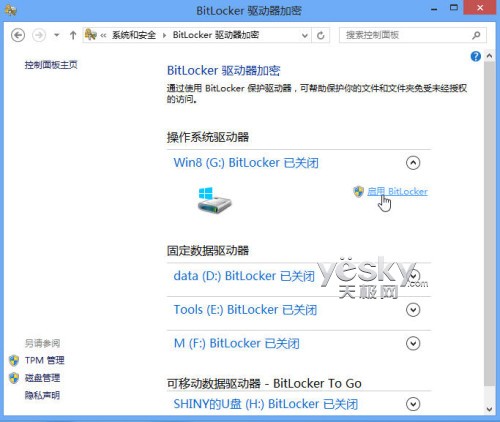 BitLocker 磁碟機加密主介面
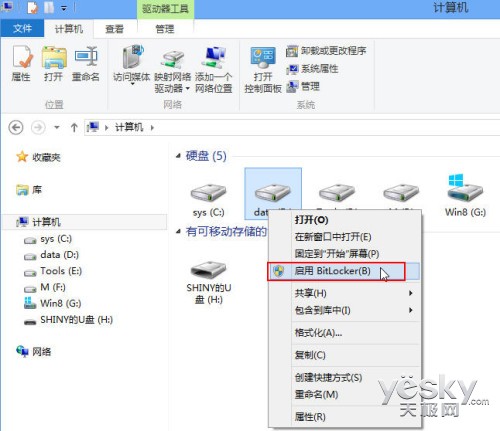 從檔案總管右鍵進入
加密 USB 隨身碟實作
- 點選對應磁碟機「開啟 BitLocker」。
- 選擇解鎖方式:密碼(建議含大小寫、數字、符號)或智慧卡。
- 備份復原金鑰:儲存至 Microsoft 帳戶、檔案、列印(固定磁碟另可存至 USB)。
- 選擇加密模式:僅加密已用空間(較快)或加密整個磁碟機。
- 開始加密,完成後磁碟機圖示會顯示鎖頭圖示。
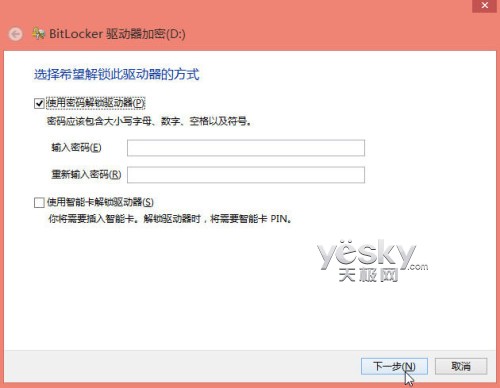 選擇解鎖方式
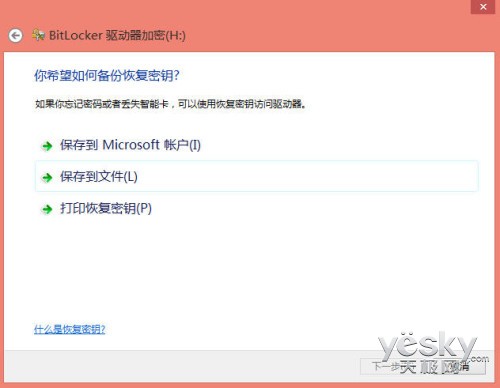 備份復原金鑰方式(移動磁碟機)
後續將介紹加密後的使用與管理細節。