Windows 8 設定靜態 IP 位址步驟:
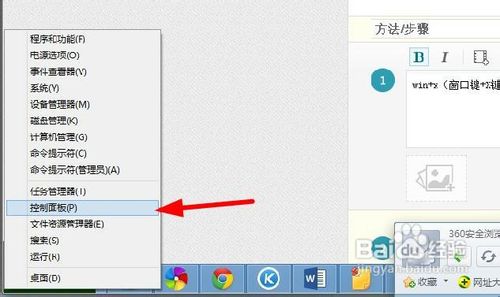
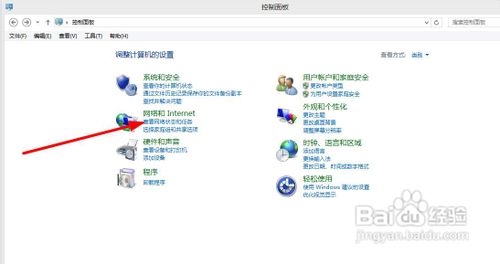
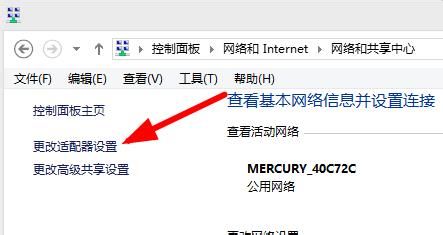
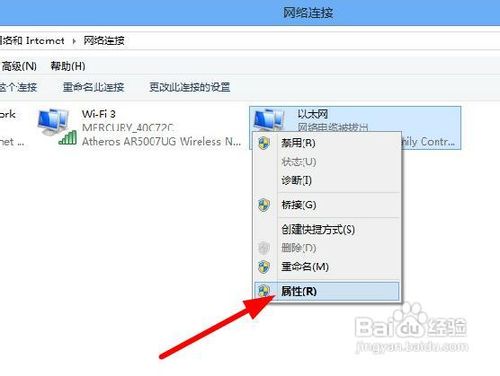
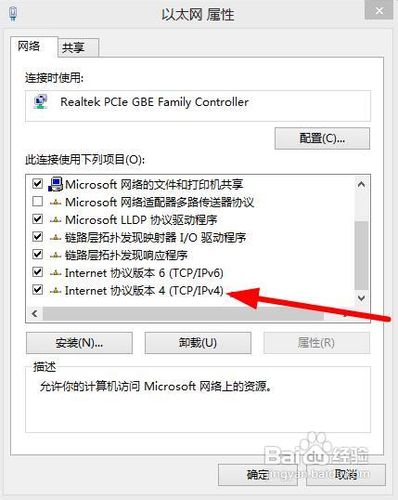
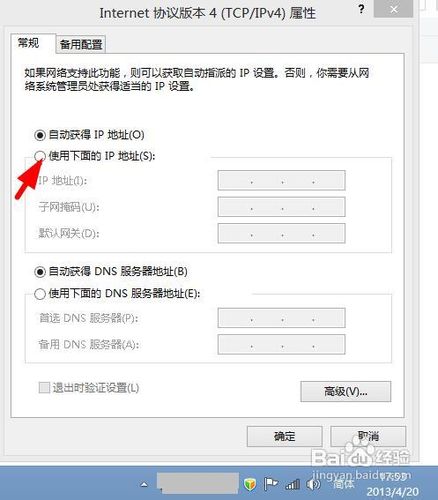
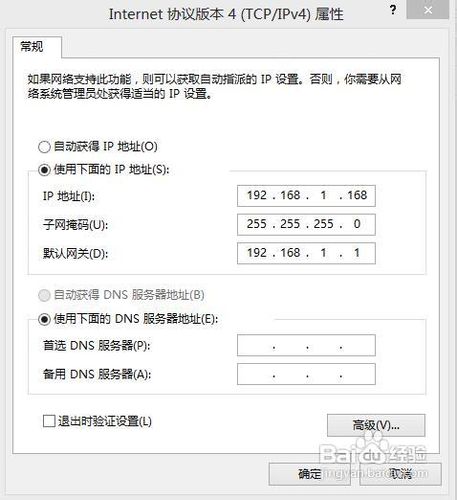
New-NetIPAddress -InterfaceAlias "乙太網路" -IPAddress 192.168.1.100 -PrefixLength 24 -DefaultGateway 192.168.1.1 → Set-DnsClientServerAddress -InterfaceAlias "乙太網路" -ServerAddresses 8.8.8.8,8.8.4.4。Win8 安裝 Telnet 用戶端/伺服器:Windows 功能啟用指南
Windows 8 查看與修改電腦名稱、網域與工作群組:Win+X 快速入口圖解
Windows 8.1 SkyDrive 設定「離線可用」:Modern SkyDrive 應用 → 設定 → 選項 → 開啟離線存取所有檔案
Windows 8:重塑 Windows——BUILD 2011 歷史時刻回顧
Win8 筆電變身 Wi-Fi 熱點:netsh 指令建立虛擬網卡 + 連線共享
Windows 8 無線網路受限/無連線故障排除:檢查路由器、手機測試、定時重啟路由器、聯繫 ISP