故障現象
Win 8 線上看影片提示需更新 Flash,下載安裝程式執行後無反應或報錯,Flash 版本停留在舊版。
根本原因
Flash Player ActiveX 元件(Flash.ocx)損壞或註冊失敗,導致瀏覽器無法正確載入。
解決方案:手動替換檔案並重新註冊
準備工作
- 取得乾淨的 Flash Player 檔案資料夾(含
Flash.ocx、FlashUtil_ActiveX.exe 等)。可從官方完整安裝包解壓縮取得,或自其他正常電腦複製。
- 目標路徑(64 位元系統皆需處理):
C:\Windows\System32\Macromed\FlashC:\Windows\SysWOW64\Macromed\Flash
操作步驟
- 將上述兩路徑下原有
Flash 資料夾重命名為 Flash_old 備份。
- 將準備好的乾淨
Flash 資料夾複製到兩個 Macromed 目錄下。
- 若複製失敗(權限問題):右鍵資料夾→「內容」→「安全性」→「進階」→ 變更擁有者為目前使用者→ 編輯權限給予「完全控制」。
- 以系統管理員身分開啟命令提示字元(Win+X → 「命令提示字元 (系統管理員)」)。
- 依序執行以下指令(每行按 Enter):
cd C:\Windows\System32\Macromed\Flash
regsvr32 Flash.ocx
cd C:\Windows\SysWOW64\Macromed\Flash
regsvr32 Flash.ocx
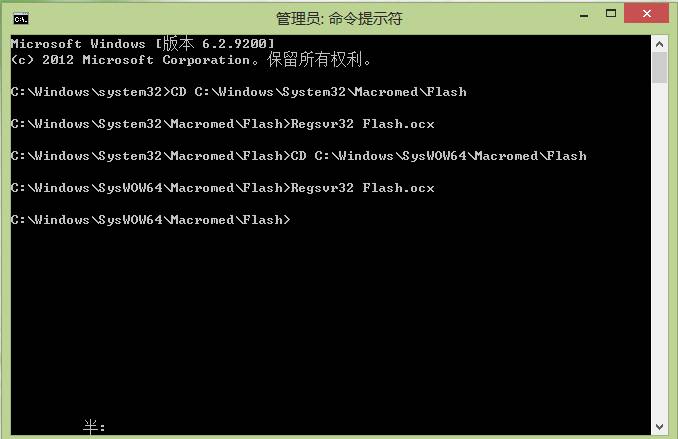
- 若出現「DllRegisterServer in Flash.ocx succeeded」即代表註冊成功。
- 重新開啟瀏覽器測試 Flash 內容。
權限修改詳細圖解
- 右鍵
Flash 資料夾 → 「內容」→ 「安全性」→ 「進階」。
- 「擁有者」→ 「變更」→ 輸入目前帳號名稱 → 「檢查名稱」→ 確定。
- 「權限」索引標籤 → 「新增」→ 「選取主體」→ 輸入目前帳號 → 「檢查名稱」→ 確定。
- 基本權限勾選「完全控制」→ 確定套用。
替代方案
- 使用 Adobe 官方 Flash Player 解除安裝程式 完全移除後,重新下載最新版安裝。
- IE10/11 內建 Flash Player,可透過 Windows Update 更新(屬選擇性更新)。