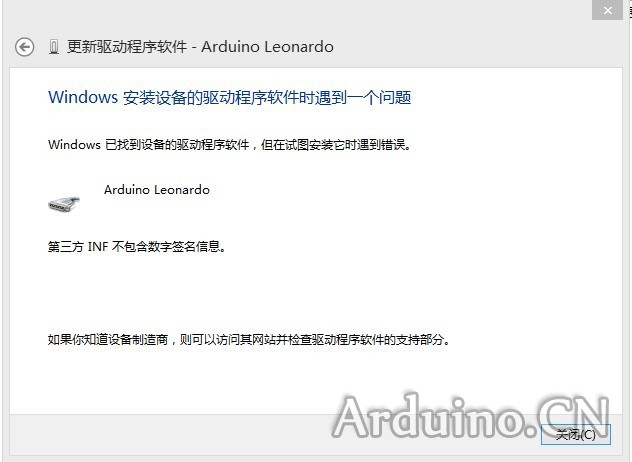
Windows 8 預設強制驅動程式簽名驗證,導致 Arduino 1.0.5 以前版本的 Uno、Mega 等開發板無法安裝驅動。需進入「停用驅動程式強制簽名」模式才能順利安裝。
進入停用簽名模式步驟
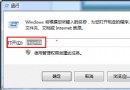
- Win+R → 輸入
shutdown.exe /r /o /f /t 00 → 確定。
- 系統重啟進入「選擇選項」畫面。
- 依序點選:「疑難排解」 → 「進階選項」 → 「Windows 啟動設定」 → 「重新啟動」。
- 重啟後出現「進階啟動選項」選單,選擇第 7 項「停用驅動程式強制簽名」(或按 F7)。
- 系統再次重啟進入桌面,此時驅動簽名驗證已暫時停用。
安裝 Arduino 驅動
在停用簽名模式下,依照 Windows 7 相同方式安裝 Arduino IDE 內含驅動,即可成功識別開發板 COM 埠。
補充說明
- Arduino 1.0.5 及更新版本已包含經簽章驅動,無需此流程。
- 重新開機後強制簽名驗證會自動恢復,不影響系統安全性。