Windows 8 開始畫面預設會顯示常用應用與最近開啟檔案,若為隱私考量 (如共用電腦、投影簡報) 可關閉此功能。
操作步驟
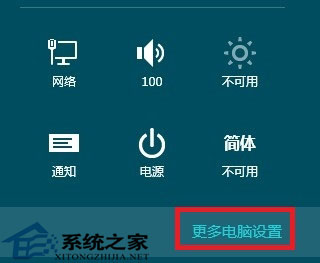
- 滑鼠移至螢幕右上角喚出 Charms 列 → 「設定」 (齒輪圖示)。
- 點擊「變更電腦設定」 (最下方)。
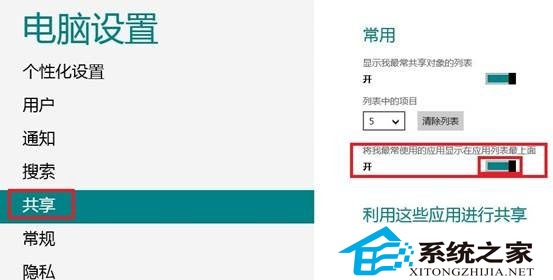
- 左側選單選「共用」 (Share)。
- 右側找到「在應用程式清單顯示我最常使用的應用程式」 (Show my most used apps in the app list),將滑桿切至「關閉」。

效果與補充
- 關閉後,開始畫面「應用程式檢視」不再根據使用頻率排序,改為字母順序。
- 檔案總管「快速存取」/「最近使用的檔案」為獨立設定,需在「資料夾選項」→「隱私權」中清除/停用。
- 此設定僅影響目前登入使用者,不影響其他帳號。