Windows 7 可透過群組原則隱藏指定磁碟機代號,使其在「電腦」與檔案總管中不顯示,但實際資料仍存在,且可透過 IE 網址列直接輸入路徑存取。
設定步驟
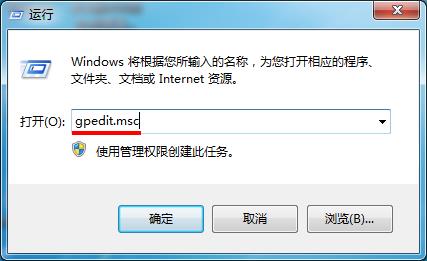
- Win+R 輸入
gpedit.msc 開啟「本機群組原則編輯器」。
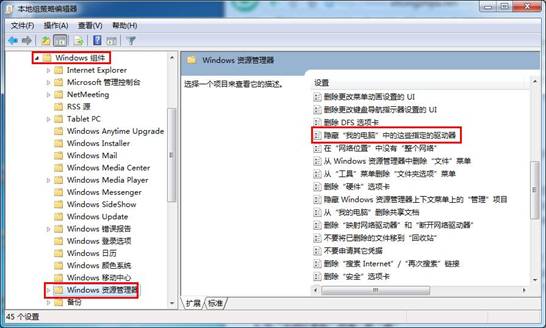
- 依序展開:
「本機電腦原則」→「使用者設定」→「系統管理範本」→「Windows 元件」→「Windows 檔案總管」。
- 右側找到「隱藏『我的電腦』中的這些指定的磁碟機」→ 雙擊開啟。
- 選擇「已啟用」→ 下拉選單選擇欲隱藏的磁碟代號 (如 C、D、E...) →「套用」→「確定」。
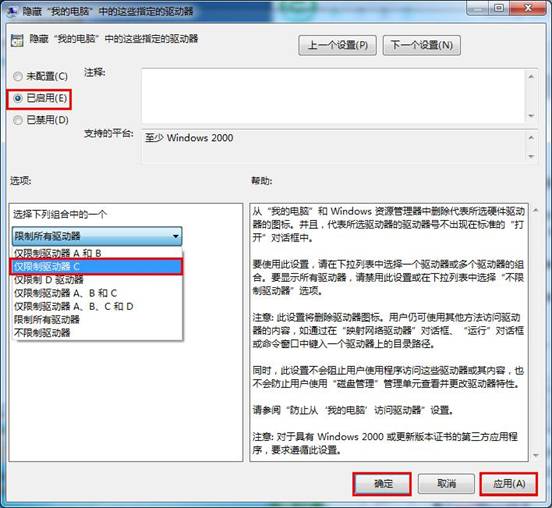
- 重新開機或重新登入生效。
注意事項
- 此設定僅隱藏圖示,不影響資料存取權限。
- 在 IE 網址列輸入
C: 並按 Enter,仍可瀏覽隱藏分區內容。
- 若需完全限制存取,請改用 NTFS 權限設定或 BitLocker 加密。