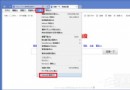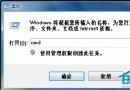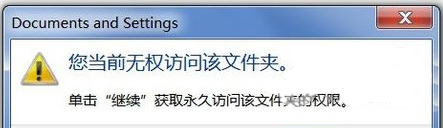
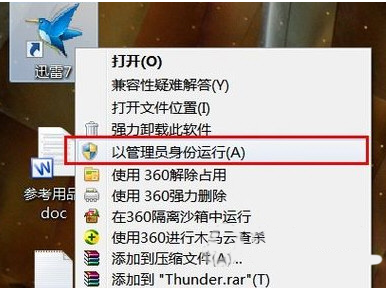
參考 ID 92281。警告: 日常使用**強烈不建議**啟用/登入 Administrator 帳號,繞過 UAC 保護極易導致系統被惡意軟體破壞、誤刪關鍵檔案。僅在深度維修/部署映像等特定場景短暫使用,用畢即停用。
Windows Registry Editor Version 5.00

[HKEY_CLASSES_ROOT\*\shell\runas]
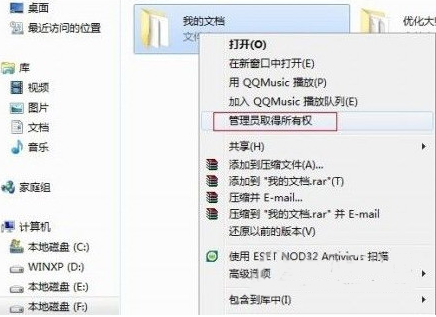
@="管理員取得所有權"
"NoWorkingDirectory"=""

[HKEY_CLASSES_ROOT\*\shell\runas\command]
@="cmd.exe /c takeown /f \"%1\" && icacls \"%1\" /grant administrators:F /t /c /l /q"
"IsolatedCommand"="cmd.exe /c takeown /f \"%1\" && icacls \"%1\" /grant administrators:F /t /c /l /q"

[HKEY_CLASSES_ROOT\Directory\shell\runas]
@="管理員取得所有權"
"NoWorkingDirectory"=""

[HKEY_CLASSES_ROOT\Directory\shell\runas\command]
@="cmd.exe /c takeown /f \"%1\" /r /d y && icacls \"%1\" /grant administrators:F /t /c /l /q"
"IsolatedCommand"="cmd.exe /c takeown /f \"%1\" /r /d y && icacls \"%1\" /grant administrators:F /t /c /l /q"
存為 `.reg` 檔雙擊匯入即可生效 (需管理員權限)。