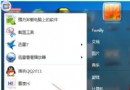
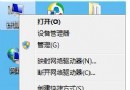
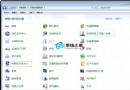
想讓桌面特定圖示「隱形」但不刪除?需先確認「資料夾選項」已設為「不顯示隱藏檔案」,再對目標圖示右鍵「內容」→ 勾選「隱藏」屬性。本文圖文示範完整設定流程。
前置設定:確認隱藏檔案不顯示
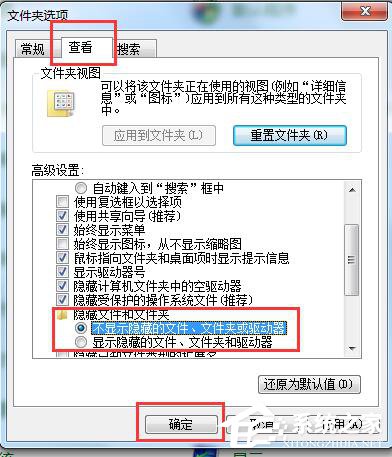
- 控制台 → 「資料夾選項」→「檢視」標籤。
- 「隱藏檔案和資料夾」選擇「不顯示隱藏的檔案、資料夾及磁碟機」。
- 點「套用」→「確定」。
隱藏目標圖示
- 桌面選取要隱藏的圖示(可 Ctrl+點選多個)。
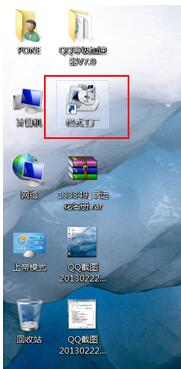
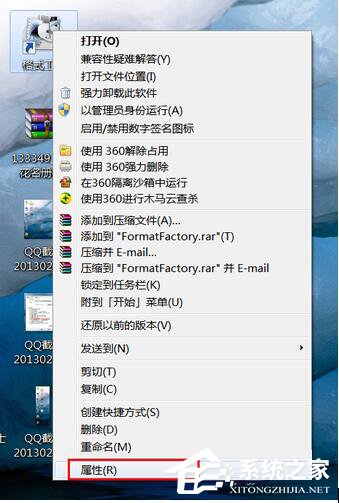
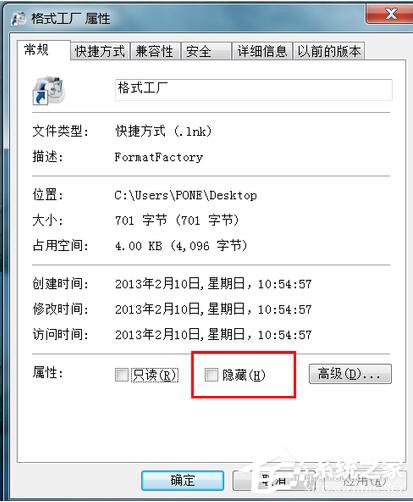
- 右鍵 →「內容」→「一般」標籤 → 勾選「隱藏」→ 確定。
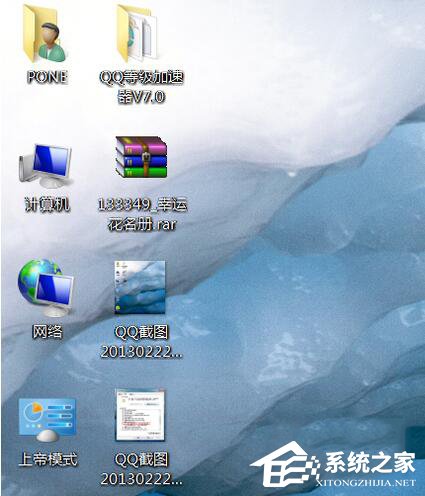
- 按 F5 重新整理桌面,圖示即消失(若仍顯示半透明,表示「資料夾選項」設為顯示隱藏檔案,請回步驟 1 修正)。
如何找回隱藏圖示?
在「資料夾選項」將「隱藏檔案和資料夾」改為「顯示隱藏的檔案、資料夾及磁碟機」,桌面會出現半透明圖示,右鍵「內容」取消勾選「隱藏」即可恢復。