Win7 開機登入畫面(Logon UI)背景預設為系統內建圖片。將任意圖片重命名為 `backgroundDefault.jpg` 置於特定目錄,重開機即可生效,**無需第三方工具、無需修改註冊表**。
操作步驟
- 開啟「電腦」/ 檔案總管。
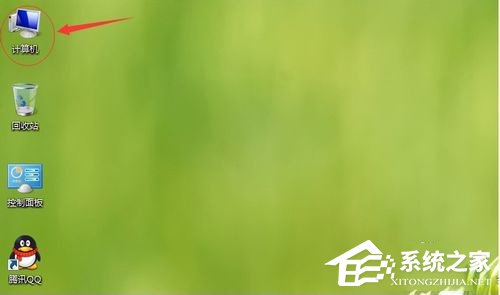
- 進入路徑:
`C:\Windows\System32\oobe\info\backgrounds\`
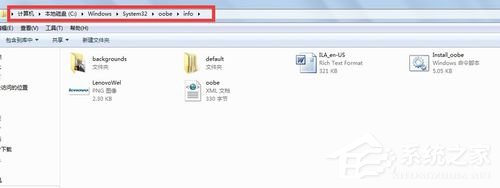
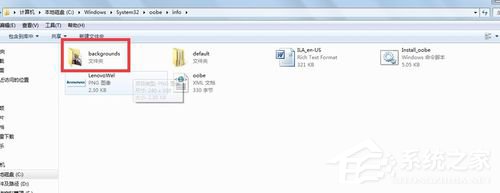
- 若 `backgrounds` 資料夾不存在 → 新建資料夾 `info` → 再新建 `backgrounds`。
- 準備喜歡的圖片(建議解析度 ≥ 螢幕解析度、JPG 格式、檔案大小 < 256 KB)**重命名為 `backgroundDefault.jpg`** → 複製/移動到 `backgrounds` 資料夾。
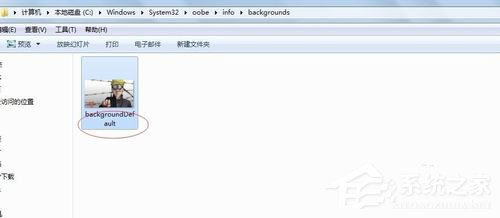
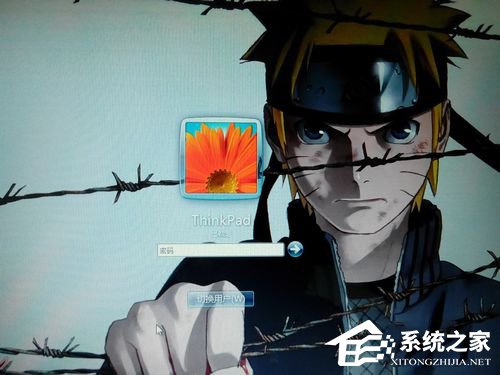
- 重開機 → 登入畫面背景即為新圖片。
進階:多解析度自動適配(可選)
在 `backgrounds` 同時放入以下檔名,系統會依螢幕解析度自動選擇最佳匹配:
| 檔名 | 適用解析度 |
|---|
| backgroundDefault.jpg | 預設/兜底 |
| background1024x768.jpg | 1024×768 |
| background1280x1024.jpg | 1280×1024 |
| background1366x768.jpg | 1366×768 |
| background1920x1080.jpg | 1920×1080 |
| background2560x1440.jpg | 2560×1440 |
啟用註冊表開關(若無效)
- Win+R → `regedit` → 定位:
`HKEY_LOCAL_MACHINE\SOFTWARE\Microsoft\Windows\CurrentVersion\Authentication\LogonUI\Background`
- 右側 `OEMBackground` (DWORD) → 值設為 **1** → 確定 → 重開機。
注意事項
- ✅ 僅影響**登入畫面**,不影響桌面壁紙。
- ✅ 圖片**必須為 JPG**,PNG/BMP 不被識別。
- ✅ 檔案大小**建議 < 256 KB**,過大會導致載入延遲/顯示預設圖。
- ✅ 系統更新/修復可能覆蓋/刪除此檔,需重新放置。
💡 同樣方法適用於 Win Server 2008 R2。Win8/10/11 登入畫面背景機制不同(鎖定畫面/登入畫面分離),需用「設定 → 個人化 → 鎖定畫面」或群組原則配置。