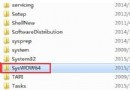
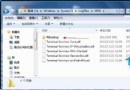
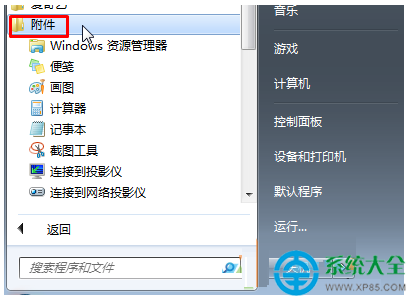
Windows 7 內建 IE8,升級安裝 IE9/10/11 後若想完全移除回歸 IE8(或完全移除 IE),控制台「程式和功能」中找不到解除安裝選項。需以管理員身分執行 CMD,使用 FORFILES 配合 pkgmgr 系統級移除對應版本套件。
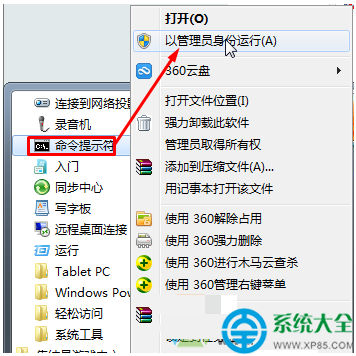
FORFILES /P %WINDIR%\servicing\Packages /M Microsoft-Windows-InternetExplorer-*9.*.mum /c "cmd /c echo Uninstalling package @fname && start /w pkgmgr /up:@fname /quiet /norestart"
FORFILES /P %WINDIR%\servicing\Packages /M Microsoft-Windows-InternetExplorer-*10.*.mum /c "cmd /c echo Uninstalling package @fname && start /w pkgmgr /up:@fname /quiet /norestart"
FORFILES /P %WINDIR%\servicing\Packages /M Microsoft-Windows-InternetExplorer-*11.*.mum /c "cmd /c echo Uninstalling package @fname && start /w pkgmgr /up:@fname /quiet /norestart"
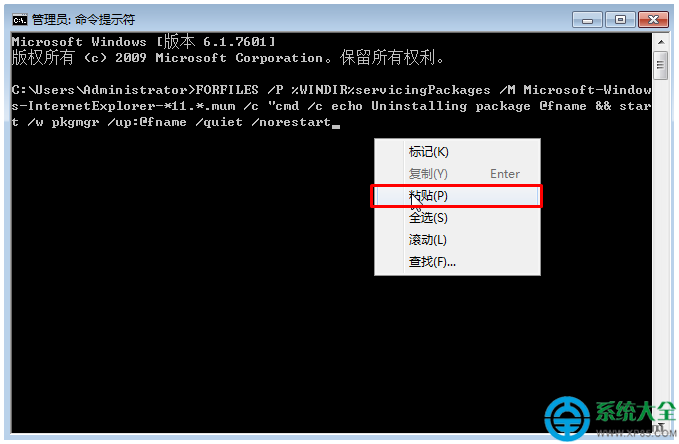
FORFILES 遍歷 %WINDIR%\servicing\Packages 找到對應 IE 版本的 .mum 更新套件資訊檔。pkgmgr /up:@fname 針對該套件執行解除安裝,/quiet 靜默模式,/norestart 不自動重開機。注意: 移除 IE 可能影響依賴 IE 核心元件的軟體(如某些銀行元件、舊版 ERP、Windows Update 早期版本)。建議保留 IE11(Win7 最高版本)以確保相容性。
Win7 硬碟分區表遺失救援:Bootrec 修復 + DiskGenius 重建分區表完整實戰
微軟 Windows 7 定時關機批次檔:關機前 1 分鐘提醒、可自訂多時段排程
Win7 藍屏 Physical Memory Dump?六大硬體排查方向:記憶體、擴充卡、散熱、硬碟、相容性、診斷卡
Win7 安裝 Windows SDK 7.1 失敗錯誤解決:移除衝突的 VC++ 2010 Redistributable
Windows 7 開機後網路圖示持續轉圈?啟用 Network List Service 修復
Win7 顯示與修改檔案副檔名方法:資料夾選項取消隱藏擴充名