安裝 360 安全衛士等優化軟體後,「無法啟動 Windows 安全性中心」提示頻現。主因是優化軟體將 Security Center 服務 判定為非必要服務而停用。本文提供從基礎到進階的完整修復步驟。
基礎修復:啟用 Security Center 服務
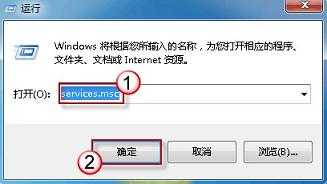
- Win + R 輸入
services.msc 開啟服務管理員
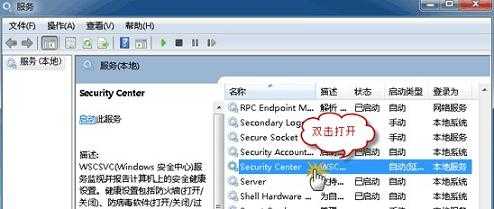
- 向下捲動找到 Security Center → 雙擊開啟屬性
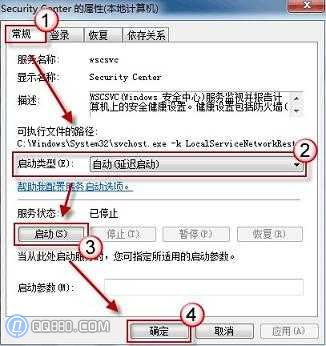
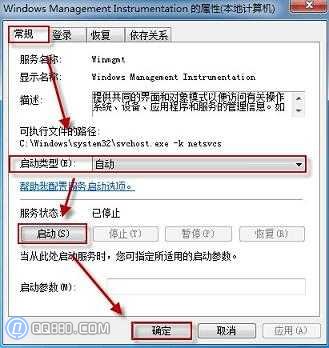
- 「啟動類型」改為 自動 (延遲啟動)
- 「服務狀態」點擊 啟動 → 確定
- 重開機驗證是否解決

進階修復:啟動相依服務(若基礎修復無效)
Security Center 相依於以下兩項核心服務,必須先啟動它們:
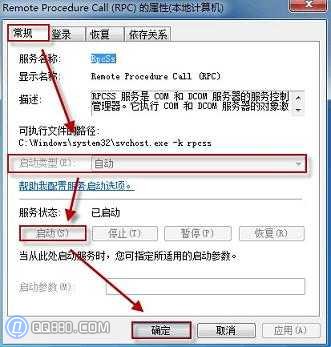
- 依同樣方式啟用 Remote Procedure Call (RPC) 服務
- 啟用 Windows Management Instrumentation 服務
- 最後再啟用 Security Center 服務
關鍵提醒
- 服務啟動順序很重要:RPC → WMI → Security Center
- 若使用第三方安全軟體,建議在其設定中關閉「優化系統服務」選項,避免再次停用
- 修復後建議建立系統還原點,以備後續誤操作快速回溯