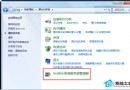
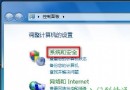
Windows 7 移除了 XP 時代「資料夾選項」中的「檔案類型」標籤,導致許多用戶找不到檔案關聯設定入口。本文說明新版設定位置與操作邏輯。
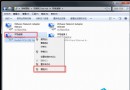
右鍵 .eml → 「開啟方式」 → 選 Outlook → 勾選「永遠使用此程式開啟」 → 發現 Outlook 仍無法正常開啟,且想恢復預設關聯。
| 模式 | 適用情境 | 操作路徑 |
|---|---|---|
| 設定預設程式 | 指定某程式處理「所有它能開啟的副檔名」 | 預設程式 → 「設定預設程式」 → 選程式 → 「將此程式設為預設」或「選擇此程式的預設值」 |
| 關聯副檔名或通訊協定 | 精確控制單一副檔名(如 .eml)給哪個程式 | 預設程式 → 「建立檔案類型或通訊協定與程式的關聯」 → 找副檔名 → 「變更程式」 |
| 自動播放設定 | 控制插入媒體/裝置時的自動動作 | 預設程式 → 「變更自動播放設定」 |
.eml → 點選 → 「變更程式」wlmail.exe)路徑:HKEY_CURRENT_USER\Software\Microsoft\Windows\CurrentVersion\Explorer\FileExts\.eml\UserChoice
刪除 UserChoice 鍵值可重置為系統預設。
「Win7 把檔案關聯集中在『預設程式』,邏輯更清晰,只是入口換了個名字。」