Windows XP Windows 7 Windows 2003 Windows Vista Windows 綜合教學 Linux 系統教學
Windows 10 Windows 8 Windows 2008 Windows NT Windows Server 電腦軟體教學

Win7 關機自動清理指定資料夾:批次檔搭配群組原則實作

編輯:Win7 系統應用技巧

許多用戶習慣在桌面或特定資料夾存放暫存檔,卻常忘記清理。透過建立批次刪除腳本,並配合本機群組原則的「關機指令碼」,即可在每次關機時自動清空指定資料夾,保持系統整潔。

實作步驟

1. 建立批次清理腳本

  • 桌面右鍵 →「新增」→「文字文件」,命名為 ClearFolder.bat。
  • 以記事本開啟,輸入:del /q /s "目標資料夾完整路徑\*"
    (例:del /q /s "C:\Users\Admin\Desktop\Temp\*")
  • 儲存並關閉。

2. 設定關機指令碼

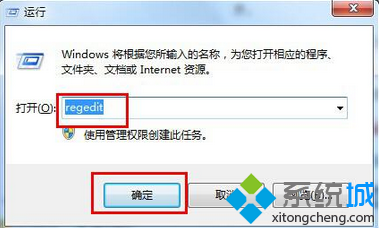
  1. Win+R 輸入 gpedit.msc 開啟本機群組原則編輯器。
  2. 依序展開:電腦設定 → Windows 設定 → 指令碼 (啟動/關機) → 關機。
  3. 雙擊「關機」→「新增」→「瀏覽」選取剛建立的 ClearFolder.bat → 確定。

注意事項

  • del 指令會永久刪除檔案(不經回收筒),請確認路徑正確。
  • 若需清理多個資料夾,可在批次檔中寫入多行 del 指令。
  • 此功能需專業版以上版本支援群組原則;家用版可改用「工作排程器」設定「關機時」觸發條件。

效益

自動化清理暫存資料夾,避免垃圾檔案堆積佔用磁碟空間,減少手動維護負擔。

Copyright © Windows教程網 All Rights Reserved