Windows 預設隱藏已知檔案類型副檔名,導致使用者無法分辨 photo.jpg.exe 等偽裝執行檔,極易中毒。開啟副檔名顯示是基本防護措施。

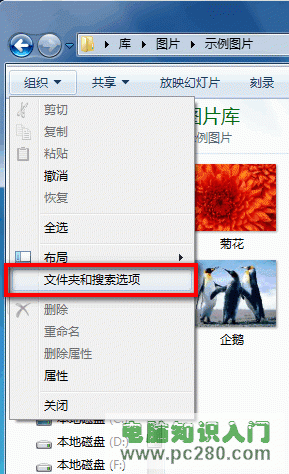
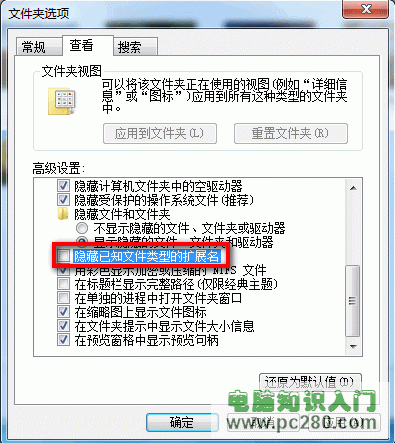
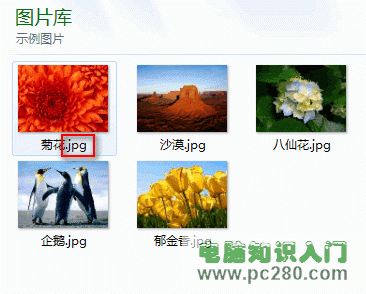
report.pdf.exe 顯示為 .exe 而非 .pdf,避免誤點執行惡意程式。User Configuration → Administrative Templates → Windows Components → File Explorer → Turn off the display of file extensions for known file types = DisabledWindows 7 32 位元 vs 64 位元 11 大差異:記憶體、驅動程式、相容性、安全性、升級路徑全解析
Win7 開啟掃描儀完整教學:控制台與 wiaacmgr 雙法 (更新版)
Win7任务管理器结束进程提示拒绝访问?服务管理器禁用关联服务强制释放占用
Win7 開啟騰訊遊戲 TGP/WeGame 頁面白屏?360 人工服務修復「二級頁面打不開」
Windows 7 市佔率將超越 XP?微軟推動企業升級的策略與數據分析
Win7 清理不需要的系統元件:關閉 Windows 功能 (關閉遊戲、XPS、媒體功能等) 釋放資源、精簡系統