Windows XP Windows 7 Windows 2003 Windows Vista Windows 綜合教學 Linux 系統教學
Windows 10 Windows 8 Windows 2008 Windows NT Windows Server 電腦軟體教學

Win7禁止指定程式執行?組策略「不要執行指定的Windows應用程式」精準封鎖

編輯:Windows 7 系統介紹

Windows 7專業版/旗艦版可透過本地組策略精準封鎖特定程式(如遊戲、聊天軟體、特定工具)執行,防止他人使用。設定後雙擊該程式將無反應,達到軟體管控目的。

設定步驟

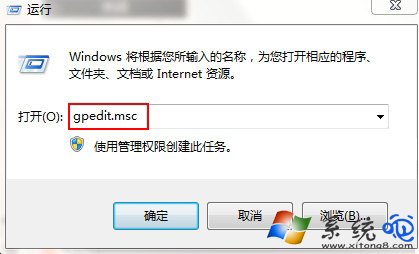
  1. 按 Win + R 輸入 gpedit.msc 開啟本地組策略編輯器。
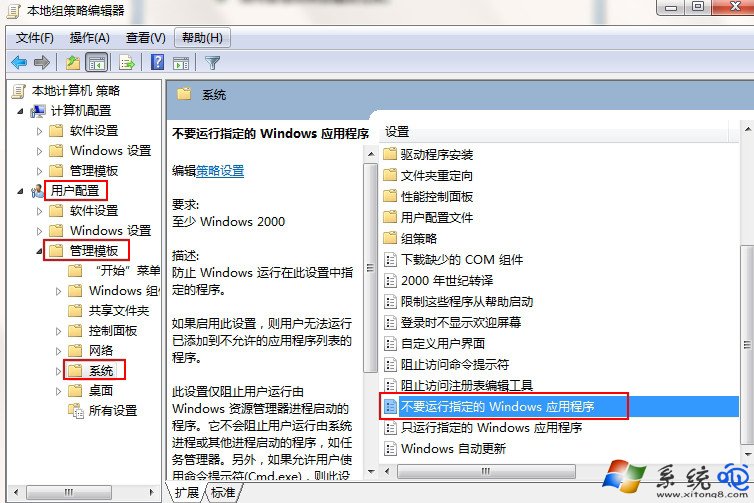
  2. 依序展開:使用者設定 → 系統管理範本 → 系統。
  3. 右側找到 「不要執行指定的 Windows 應用程式」,雙擊開啟。
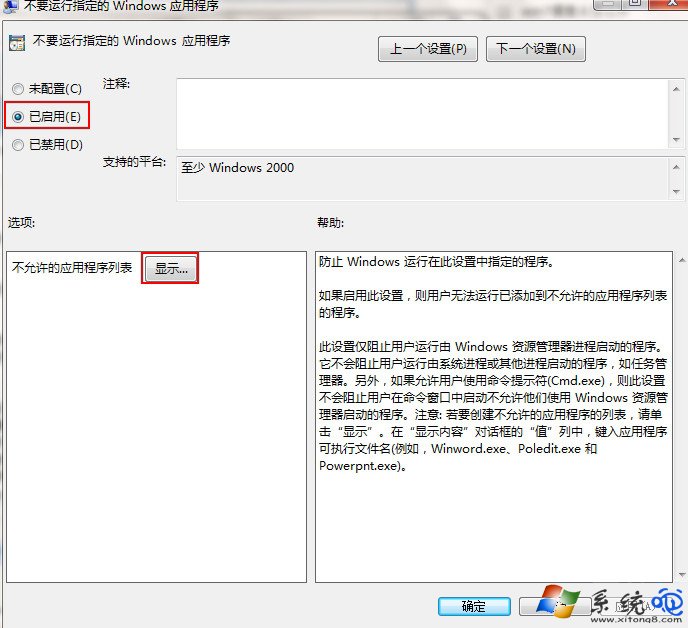
  4. 選擇 「已啟用」 → 點擊下方 「顯示...」 按鈕。
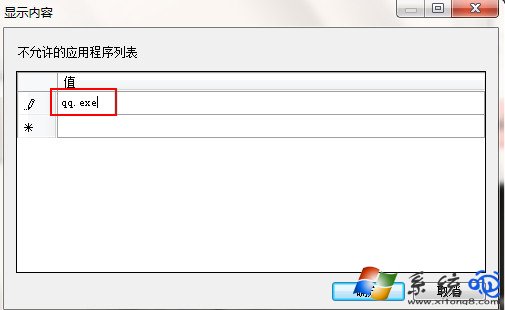
  5. 在「不允許的應用程式清單」中,逐行輸入要封鎖的程式完整檔名(含副檔名),如:
    notepad.exe
    chrome.exe
    LeagueClient.exe
    每行一個,點擊「確定」儲存。
  6. 連續點擊「確定」關閉所有視窗,設定即時生效(無需重啟)。

開啟組策略編輯器
定位不要執行指定應用程式
啟用並點擊顯示按鈕
輸入禁止執行的程式檔名

注意事項:

  • 僅支援 .exe 執行檔,捷徑、.bat/.cmd 腳本、系統內建指令(如 cmd.exe)封鎖需謹慎,可能影響系統操作。
  • 使用者若知曉檔名,可重新命名 .exe 繞過封鎖(建議搭配軟體限制原則/AppLocker進階管控)。
  • 家庭版/家用入門版無 gpedit.msc,需升級版本或用註冊表 HKEY_CURRENT_USER\Software\Microsoft\Windows\CurrentVersion\Policies\Explorer\DisallowRun 實現同樣功能。

Copyright © Windows教程網 All Rights Reserved