Windows XP Windows 7 Windows 2003 Windows Vista Windows 綜合教學 Linux 系統教學
Windows 10 Windows 8 Windows 2008 Windows NT Windows Server 電腦軟體教學

Win7 視窗預覽顯示太慢?登錄新增 ThumbnailLivePreviewHoverTime 加速彈出

編輯:Windows 7 系統介紹

滑鼠懸停工作列縮圖預覽延遲太久?登錄新增 ThumbnailLivePreviewHoverTime (DWORD) 設定懸停毫秒數 (預設 400-500ms),降低至 100-200ms 即時彈出。

設定步驟

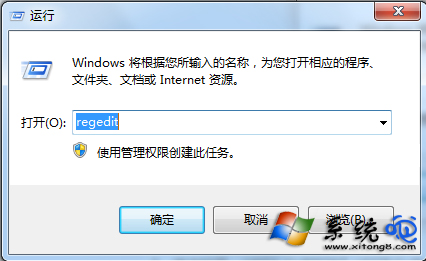
  1. Win+R 輸入 regedit 開啟登錄編輯器。
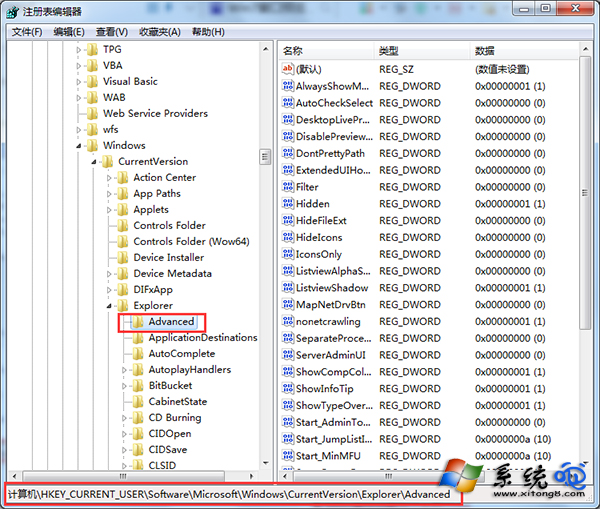
  2. 導航至:
    HKEY_CURRENT_USER\Software\Microsoft\Windows\CurrentVersion\Explorer\Advanced
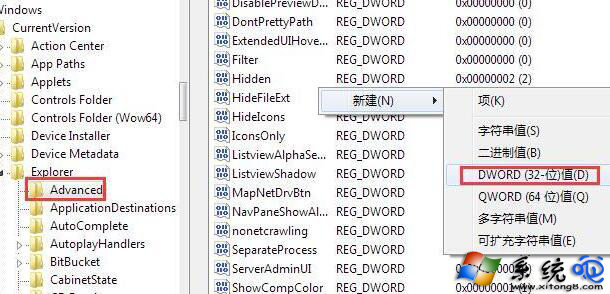
  3. 右鍵空白處 → 新增 → DWORD (32 位元) 值 → 命名 ThumbnailLivePreviewHoverTime。
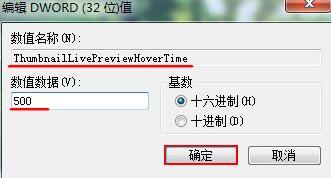
  4. 雙擊修改數值資料:100 (十進位,單位毫秒) → 確定。
  5. 登出/重新登入或重新啟動 explorer.exe 生效。

開啟登錄編輯器

定位 Advanced 機碼

新增 DWORD 值

設定數值 100

相關預覽加速註冊表值

值名稱功能建議值
ThumbnailLivePreviewHoverTime懸停多久顯示即時預覽100-200
ExtendedUIHoverTime展開式 UI (如開始選單) 懸停延遲100-200
MenuShowDelay選單顯示延遲0-100

效能影響

  • 降低延遲會增加 DWM 即時渲染頻率,極微量增加 GPU/CPU 負載
  • 現代硬體 (2010年後) 影響可忽略不計
  • 若系統資源極限,建議保持預設值
Copyright © Windows教程網 All Rights Reserved