Windows XP Windows 7 Windows 2003 Windows Vista Windows 綜合教學 Linux 系統教學
Windows 10 Windows 8 Windows 2008 Windows NT Windows Server 電腦軟體教學

Win7 更新失敗提示「設定 Windows 更新失敗」?清理軟體發佈資料夾並暫停非 Microsoft 服務解決

編輯:Windows 7 系統介紹

Windows Update 執行到一半失敗、重開機顯示「設定 Windows 更新失敗,正在還原變更」,常因第三方服務干擾或暫存資料損毀。停用非 Microsoft 服務並清理軟體發佈資料夾可解決。

解決步驟

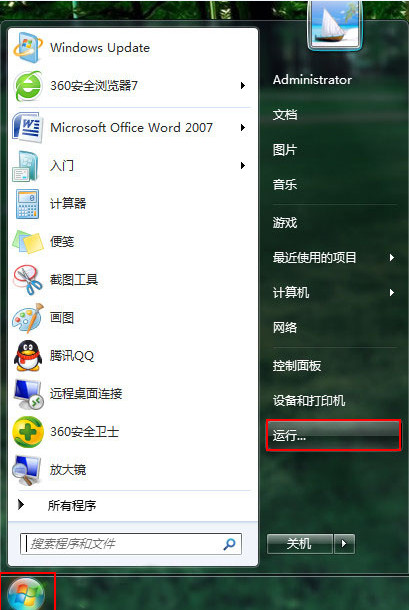
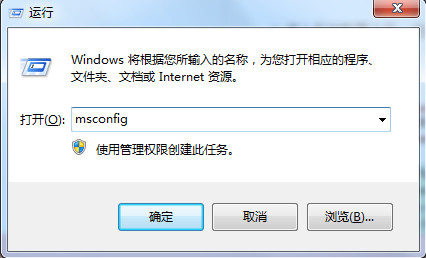
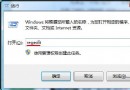
  1. Win+R → msconfig →「服務」頁籤。
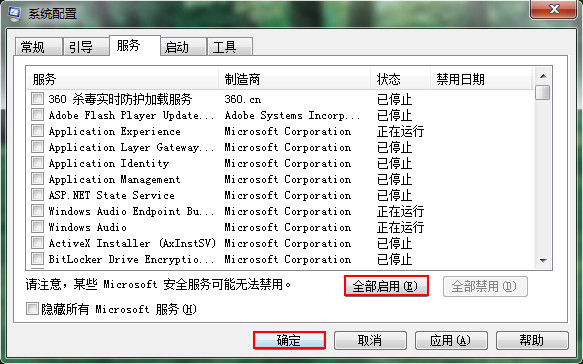
  2. 勾選「隱藏所有 Microsoft 服務」 → 按「全部停用」 →「套用」→「確定」。
  3. 重新開機。
  4. 重新執行 Windows Update,此次應可順利安裝。
  5. 更新完成後,回 msconfig →「服務」→ 按「全部啟用」恢復第三方服務 → 重新開機。
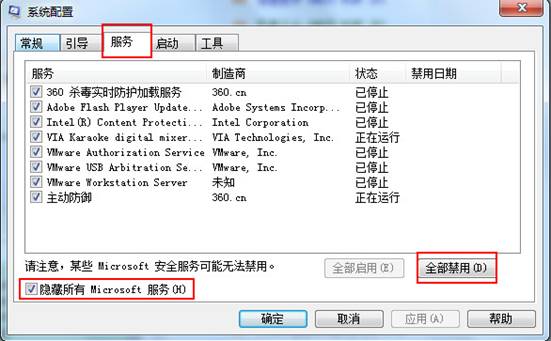
執行msconfig 服務頁籤隱藏Microsoft 全部停用 全部啟用恢復

進階清理 (若上述無效)

  1. 以管理員身分執行命令提示字元。
  2. 依序執行:
net stop wuauserv
net stop bits
rd /s /q %windir%\SoftwareDistribution
net start wuauserv
net start bits
  1. 重新執行 Windows Update。

原因

  • 第三方防毒、優化、備份軟體服務鎖定更新檔案導致寫入失敗。
  • SoftwareDistribution 資料夾暫存更新檔損毀、殘留鎖定。
Copyright © Windows教程網 All Rights Reserved