Windows XP Windows 7 Windows 2003 Windows Vista Windows 綜合教學 Linux 系統教學
Windows 10 Windows 8 Windows 2008 Windows NT Windows Server 電腦軟體教學

Win7 系統檔案損壞/遺失?SFC /scannow 一鍵掃描修復,附 CBS.log 詳細分析法

編輯:Windows 7 系統介紹

系統怪異、藍畫面、功能失效常因核心檔案受損。內建 系統檔案檢查器 (SFC) 可自動比對備份存放區修復,操作極簡單。

標準修復流程

  1. 開始 → 搜尋 cmd → 右鍵「以系統管理員身分執行」。
  2. 輸入 sfc /scannow 按 Enter,等待掃描進度條跑完(約 5–15 分鐘)。
  3. 完成後會顯示:「Windows 資源保護未發現任何完整性違規」或「找到損壞檔案並已成功修復」。

進階:找出無法修復的檔案

  1. 同管理員 CMD 執行:
    findstr /c:"[SR]" %windir%\Logs\CBS\CBS.log > "%userprofile%\Desktop\sfcdetails.txt"
  2. 開啟桌面 sfcdetails.txt,搜尋「Cannot repair」即可看到具體檔案名稱,再針對性從安裝映像手動替換或 DISM 修復元件存放區。
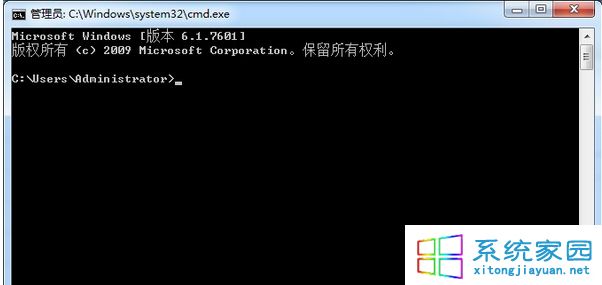
SFC 掃描進行中

搭配 DISM:若 SFC 修復失敗,先執行 DISM /Online /Cleanup-Image /RestoreHealth 修復元件存放區,再跑 SFC,成功率大增。

Copyright © Windows教程網 All Rights Reserved