Windows XP Windows 7 Windows 2003 Windows Vista Windows 綜合教學 Linux 系統教學
Windows 10 Windows 8 Windows 2008 Windows NT Windows Server 電腦軟體教學

Win7 開機黑屏僅有滑鼠游標:三大快速恢復桌面方案

編輯:Windows 7 系統介紹

Windows 7 開機進入桌面後出現黑屏、僅顯示滑鼠游標、無工作列/桌面圖示/開始選單,常見原因:explorer.exe 未啟動/異常終止、註冊表 Shell 值被惡意程式/優化工具竄改、顯示卡驅動衝突。提供三種由簡單到深入的恢復方案。

方案一:強制重啟 / 睡眠喚醒 (最簡單、偶爾有效)

  • 長按電源鍵 5 秒強制關機 → 重新開機。
  • 或短按電源鍵進入睡眠 → 再短按喚醒,部分情況下 explorer.exe 會重新啟動。

方案二:工作管理員手動啟動 explorer.exe (成功率高)

  1. 黑屏狀態下按 Ctrl+Alt+Del → 選擇「啟動工作管理員」。
  2. Ctrl+Alt+Del 選單
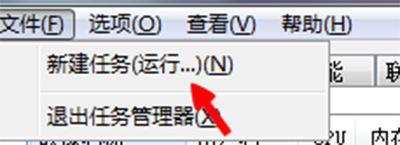
  3. 工作管理員 → 「檔案」→「新增工作 (執行...)」→ 輸入 explorer.exe → 「確定」。
  4. 新增工作 explorer.exe
  5. 桌面應立即恢復正常。若頻繁發生,請執行方案三徹底修復。

方案三:註冊表修復 Shell 鍵值 (徹底根治)

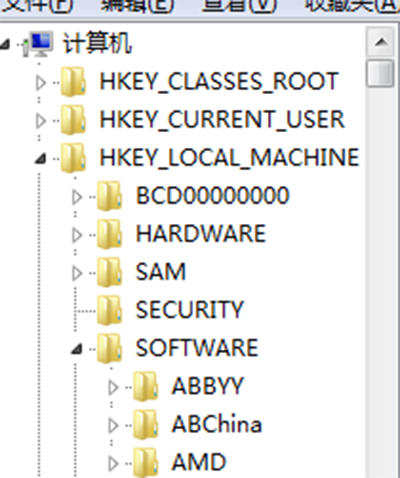
  1. 方案二恢復桌面後,Win+R → regedit 開啟登錄編輯器。
  2. 開啟註冊表編輯器
  3. 定位至:
    HKEY_LOCAL_MACHINE\SOFTWARE\Microsoft\Windows NT\CurrentVersion\Winlogon
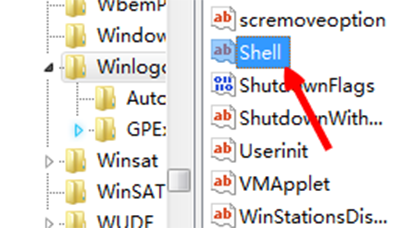
  4. Winlogon 路徑
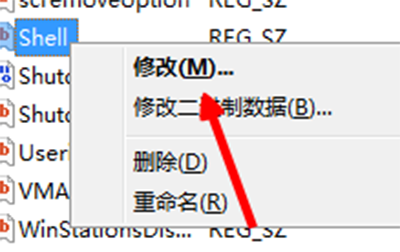
  5. 右側找到 Shell → 右鍵「修改」。
  6. 修改 Shell 值
  7. 數值資料應僅為 explorer.exe → 若有額外路徑 (如 explorer.exe C:\Windows\System32\malware.exe) → 刪除額外部分,僅保留 explorer.exe → 「確定」。
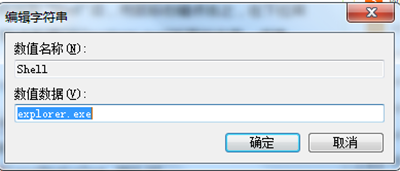

  8. Shell 值修改前 Shell 值修改後
  9. 同檢查:
    HKEY_CURRENT_USER\Software\Microsoft\Windows NT\CurrentVersion\Winlogon\Shell (若存在應刪除或設為 explorer.exe)
    HKEY_CURRENT_USER\Software\Microsoft\Windows\CurrentVersion\Policies\System\Shell (同理)
  10. 重新開機驗證,黑屏問題應徹底解決。

後續防護

  • 全盤防毒掃描 (Windows Defender 離線 / 火綜 / Malwarebytes)。
  • 檢查啟動項 (msconfig / taskmgr) 停用不明項目。
  • 更新顯示卡驅動至廠商官網最新版。
  • 建立系統還原點 / 系統映像備份。
Copyright © Windows教程網 All Rights Reserved