Windows 7 安裝 Office 2013 常遭遇三大錯誤代碼:1402(登錄存取權限不足)、1920(FontCache 服務未啟動)、1406(登錄寫入被拒絕)。針對各錯誤提供註冊表權限修復、服務啟動、殘留檔案清理完整方案。
regedit,定位錯誤提示的機碼路徑(通常為 HKLM\Software\Microsoft\Office\15.0、HKLM\Software\Wow6432Node\Microsoft\Office\15.0、HKCU\Software\Microsoft\Office\15.0)。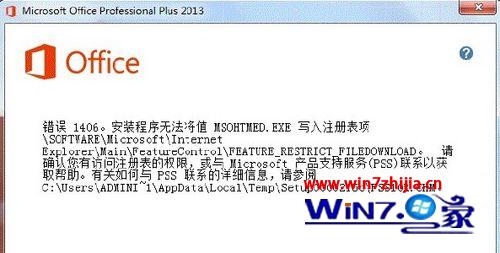
Everyone → 「檢查名稱」→ 確定 → 選取 Everyone → 勾選「完全控制」允許 → 確定。services.msc 開啟服務。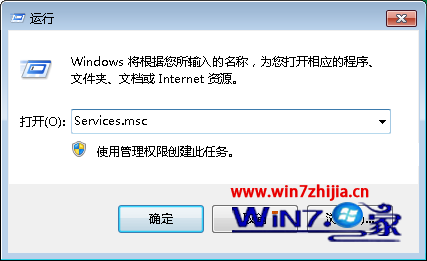
FontCache)→ 雙擊開啟屬性。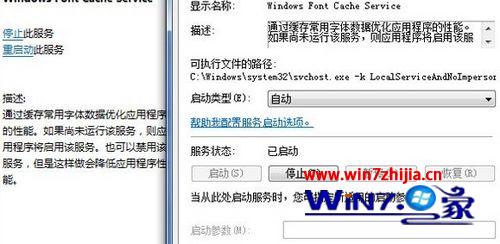
以系統管理員開啟命令提示字元,依序執行刪除下列路徑(若存在):
rd /s /q "%APPDATA%\Microsoft\Excel"
rd /s /q "%APPDATA%\Microsoft\Word"
rd /s /q "%LOCALAPPDATA%\Temp\*Office*"
rd /s /q "%PROGRAMDATA%\Microsoft\Office\SoftwareProtectionPlatform"
rd /s /q "C:\Program Files\Common Files\Microsoft Shared\*Office*"
rd /s /q "C:\Program Files\Microsoft Office"
rd /s /q "%LOCALAPPDATA%\Microsoft\Office"
rd /s /q "%APPDATA%\Microsoft\Office"
rd /s /q "%APPDATA%\Microsoft\Templates"
rd /s /q "C:\Program Files\Common Files\Microsoft Shared\OfficeSoftwareProtectionPlatform"
rd /s /q "%PROGRAMDATA%\Microsoft\OFFICE"
rd /s /q "C:\Program Files\Common Files\Microsoft Shared\RRLoc14"
rd /s /q "C:\Program Files\Common Files\Microsoft Shared\THEMES14"
完成後執行 cleanmgr(磁碟清理)→ 清理系統檔案 → 勾選所有項目 → 確定。再使用 CCleaner 掃描註冊表問題並修復。
setup.exe。