將裝置管理員與進階系統設定加入「我的電腦」右鍵選單,方便快速存取。
Windows Registry Editor Version 5.00

[HKEY_CLASSES_ROOT\CLSID\{20D04FE0-3AEA-1069-A2D8-08002B30309D}\shell\Devices]
@=hex(2):be,8b,07,59,a1,7b,06,74,68,56,2e,00,2e,00,2e,00,00,00
"SuppressionPolicy"=dword:4000003c
"Icon"="DeviceProperties.exe"

[HKEY_CLASSES_ROOT\CLSID\{20D04FE0-3AEA-1069-A2D8-08002B30309D}\shell\Devices\command]
@=hex(2):25,00,77,00,69,00,6e,00,64,00,69,00,72,00,25,00,5c,00,73,00,79,00,73,00,74,00,65,00,6d,00,33,00,32,00,5c,00,6d,00,6d,00,63,00,2e,00,65,00,78,00,65,00,20,00,2f,00,73,00,20,00,25,00,53,00,79,00,73,00,74,00,65,00,6d,00,52,00,6f,00,6f,00,74,00,25,00,5c,00,73,00,79,00,73,00,74,00,65,00,6d,00,33,00,32,00,5c,00,64,00,65,00,76,00,6d,00,67,00,6d,00,74,00,2e,00,6d,00,73,00,63,00,20,00,2f,00,73,00,00,00

[HKEY_CLASSES_ROOT\CLSID\{20D04FE0-3AEA-1069-A2D8-08002B30309D}\shell\AdvSysProp]
@=hex(2):fb,7c,df,7e,5e,5c,27,60,2e,00,2e,00,2e,00,00,00
"Icon"="cliconfg.exe"

[HKEY_CLASSES_ROOT\CLSID\{20D04FE0-3AEA-1069-A2D8-08002B30309D}\shell\AdvSysProp\command]
@=hex(2):63,00,6f,00,6e,00,74,00,72,00,6f,00,6c,00,20,00,73,00,79,00,73,00,64,00,6d,00,2e,00,63,00,70,00,6c,00,00,00
加入裝置管理員選單.reg,雙擊匯入登錄。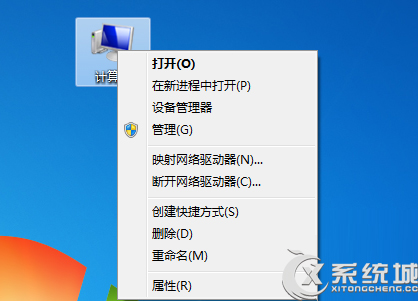
匯入成功後,右鍵「我的電腦」即可看到「裝置管理員」與「進階系統設定」選項。
Win7 工作列縮圖預覽消失?三步驟恢復 Aero Peek 功能
Windows 7 免費使用一年:重新授權命令配合登錄檔修改技巧
Win7 開機關機加速十招:清理啟動項、停用無用服務、碎片整理、刪除 Prefetch、調整視覺效果、修復系統檔案
Win7 32位純淨版無法開啟支付寶頁面?三大常見原因與解決方案
Win7 TTF 字型檔雙擊打不開?註冊表修復 .ttf 關聯與 ttffile 類別定義
Windows 7「啟動和故障恢復」台與舊版差異:移除編輯按鈕、調整記憶體傾印預設
Windows 7 移除捷徑小箭頭三法:優化大師/超級兔子一鍵、註冊表刪除 IsShortcut (lnkfile/piffile)