Windows XP Windows 7 Windows 2003 Windows Vista Windows 綜合教學 Linux 系統教學
Windows 10 Windows 8 Windows 2008 Windows NT Windows Server 電腦軟體教學

Win7 使用者帳號自動登入三法:魔方圖形介面、control userpasswords2、登錄檔修改

編輯:Windows 7 系統介紹

個人電腦不想每次輸入密碼,又要保留密碼防他人?三種自動登入法任選:

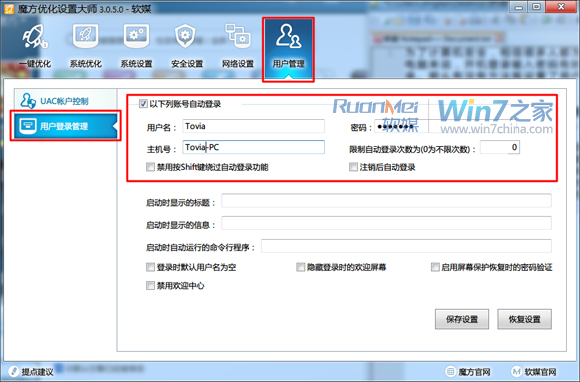
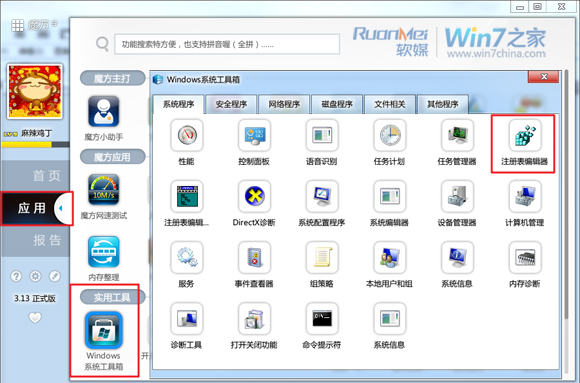
方法一:魔方優化大師「使用者登入管理」(最直觀、功能最全)

優化設定大師 → 使用者管理 → 使用者登入管理 → 勾選「以下列帳號自動登入」 → 輸入帳號密碼 → 可設「限制自動登入次數」「禁用 Shift 繞過」「登出後自動登入」,功能近乎完美。

方法二:control userpasswords2 或 netplwiz(原生、不寫 DefaultPassword 較安全)

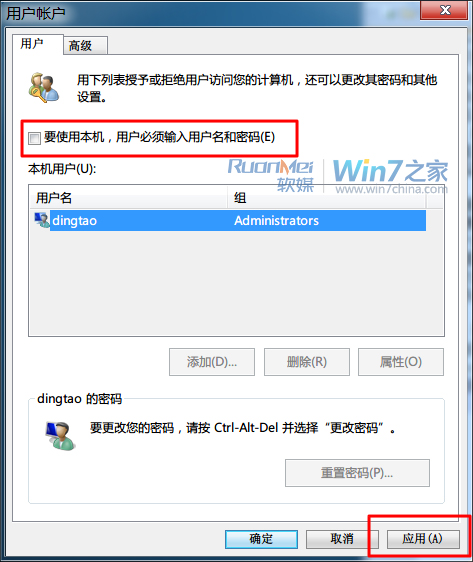
  1. Win+R 輸入 control userpasswords2 或 netplwiz。
  2. 取消勾選「使用者必須輸入使用者名稱和密碼」 → 套用。
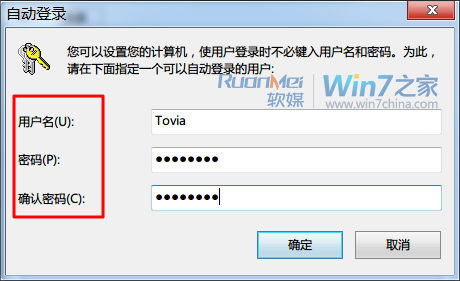
  3. 彈出「自動登入」視窗 → 輸入帳號、兩次密碼 → 確定。

方法三:登錄檔修改(等同魔方原理,適合手動派)

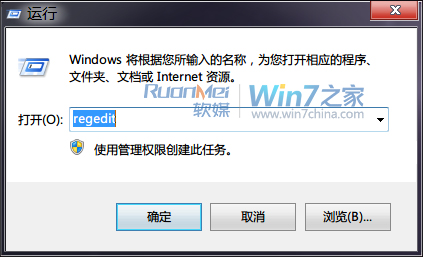
  1. regedit 定位 HKEY_LOCAL_MACHINE\SOFTWARE\Microsoft\Windows NT\CurrentVersion\Winlogon。
  2. 新增字串值 AutoAdminLogon = 1(0=關閉)。
  3. 新增 DefaultUserName = 你的帳號。
  4. 新增 DefaultPassword = 你的密碼(明文儲存,安全性較低)。

安全性比較

  • 方法二不建立 DefaultPassword,登錄檔無明文密碼,相對最安全。
  • 魔方取消功能時會自動刪除對應登錄檔值,管理方便。
  • 共用電腦、攜帶筆電不建議啟用自動登入。

Copyright © Windows教程網 All Rights Reserved