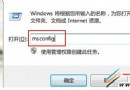
低配電腦跑 Win7 怎麼優化?手動調整系統服務最直接有效。先備份預設服務清單 (服務管理員→動作→匯出列表),誤改可進安全模式修復。
服務啟動類型說明
- 自動: 開機同步載入。
- 自動 (延遲啟動): Win7 人性化設計,開機後延遲載入,緩解低配電腦開機緩慢。
- 手動: 不隨開機載入,需特定觸發或手動啟動 (如 Application Identity 需手動啟用才能用 AppLocker)。
- 停用: 完全不執行,除非手動改回。
可停用服務分類建議
- 非區域網路環境: Computer Browser (瀏覽網上鄰居)、HomeGroup Listener/Provider (家庭群組) → 停用。筆記本建議保留 Computer Browser。
Offline Files (離線檔案)、Server (檔案共享) → 停用。
- 不用的功能: Power (電源管理,桌機可停)、Print Spooler (列印佇列,無印表機停)、Tablet PC Input Service (手寫板/平板)、Portable Device Enumerator Service (大容量行動儲存同步) → 視需停用。
Background Intelligent Transfer Service (BITS,支援 Windows Update) → 已關自動更新者可停,但可能影響其他軟體自動更新。
- 雞肋功能: Diagnostic Policy Service (DPS,故障診斷、疑難排解) → 解決率低,停用。
Diagnostic Service Host、Diagnostic System Host → 同屬診斷體系,停用。
Distributed Link Tracking Client (DLTC,NTFS 連結追蹤) → 單機無用、區網需全開才有效,停用。
Windows Error Reporting Service (錯誤報告) → 幾乎無用,停用。
- 自動播放: Shell Hardware Detection (SHD) → 停用可關閉插入快閃記憶體彈出提示,**同時降低中毒風險**。
可能連動關閉 Windows Image Acquisition (WIA,掃描/相機影像擷取) → 無掃描儀可停。
- 搜尋功能: Windows Search → 常用保留 (延遲啟動);極少用可停。
- 裝第三方防毒/防火牆: Windows Firewall → 可停用,第三方產品通常已完整取代。
實測效果
停用近 20 項服務後,開機從 58 秒降至 50 秒,低配電腦效果更明顯。