Windows XP Windows 7 Windows 2003 Windows Vista Windows 綜合教學 Linux 系統教學
Windows 10 Windows 8 Windows 2008 Windows NT Windows Server 電腦軟體教學

找回 Windows 7 內建小遊戲(掃雷、紙牌、蜘蛛紙牌等)的啟用教學

編輯:Windows 7 系統介紹

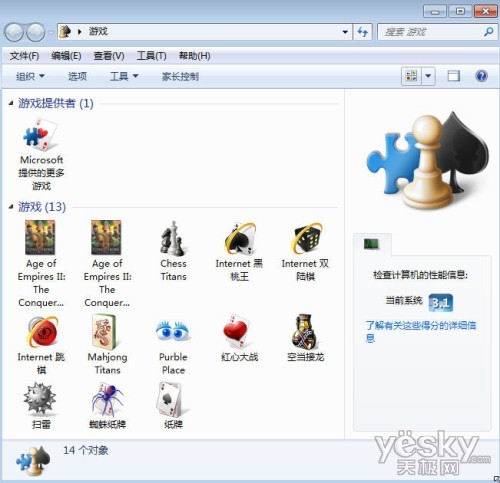
Windows 7 專業版/企業版預設關閉「遊戲」元件,導致開始選單「遊戲」資料夾空空如也。只需啟用 Windows 功能即可找回掃雷、紙牌、蜘蛛紙牌、紅心大戰、波波爾等經典小遊戲。
啟用步驟

  1. 點選「開始」→ 搜尋框輸入 「開啟或關閉 Windows 功能」 → Enter。
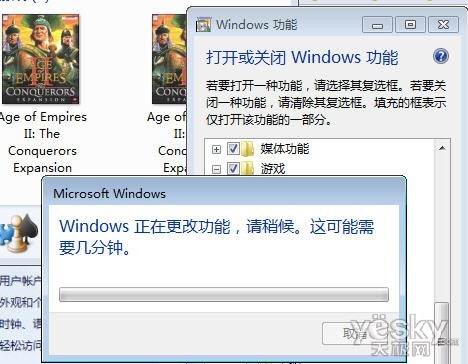
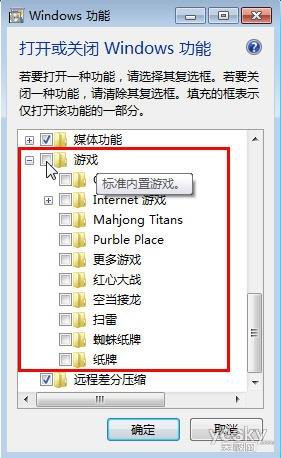
  2. 在「Windows 功能」視窗中,展開 「遊戲」 節點。
  3. 勾選你想要的遊戲(或直接勾選「遊戲」父節點全選)。
  4. 按「確定」→ 系統自動安裝元件(約 10-30 秒)→ 完成。

搜尋開啟 Windows 功能

Windows 功能視窗 - 遊戲節點

勾選遊戲後確定

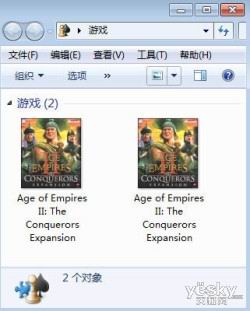
遊戲恢復出現在開始選單

版本差異說明

  • 家用基本版/家用高級版:預設已啟用遊戲,開始選單直接可見。
  • 專業版/企業版/旗艦版:預設關閉,需手動啟用(本文針對此情況)。
  • 入門版:不包含遊戲元件,無法啟用。

進階:命令列快速啟用(適合部署/腳本)

以管理員身分執行 CMD:

dism /online /enable-feature /featurename:GamesGroup /all

單指令即可啟用整組遊戲群組,無需 GUI 操作。

未來想停用/移除怎麼辦?

同樣進入「開啟或關閉 Windows 功能」→ 取消勾選「遊戲」→ 確定 → 系統移除元件釋放空間(約 50-100 MB)。

小遊戲執行檔位置(備查)

  • C:\Windows\System32\winmine.exe(掃雷)
  • C:\Windows\System32\sol.exe(紙牌)
  • C:\Windows\System32\spider.exe(蜘蛛紙牌)
  • C:\Windows\System32\freecell.exe(自由紙牌)
  • C:\Windows\System32\hearts.exe(紅心大戰)
  • C:\Windows\System32\purble.exe(波波爾)

一鍵啟用 Windows 功能,經典小遊戲即刻回歸,工作間隙輕鬆解壓。

Copyright © Windows教程網 All Rights Reserved