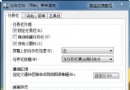
電腦時間漂移會導致 SSL 憑證驗證失敗、排程任務錯亂、日誌時間戳錯誤。Win 7 內建 Windows Time 服務,可自動同步 Internet 時間伺服器(預設 time.windows.com),設定一次永久精準。
time.windows.com(微軟預設,全球 CDN)pool.ntp.org(全球志願者 NTP 集群,極高可用性)time.nist.gov(美國國家標準局原子鐘)time.google.com(Google Public NTP,支援閏秒平滑)time.cloudflare.com(Cloudflare NTP,Anycast 低延遲)time.stdtime.gov.tw(國家標準時間中心)、watch.stdtime.gov.tww32tm /resync /nowait # 立即同步
w32tm /query /status # 查看同步狀態、來源、誤差
w32tm /query /configuration # 查看完整設定
w32tm /config /manualpeerlist:"time.google.com time.cloudflare.com" /syncfromflags:manual /reliable:yes /update
| 現象 | 原因 | 解決 |
|---|---|---|
| 同步失敗「電腦未與網際網路時間伺服器同步處理」 | 時間差過大(>15分鐘)、防火牆封鎖 UDP 123、DNS 解析失敗 | 手動調整時間接近正確值 → 開放防火牆 UDP 123 輸出 → 檢查 DNS |
| 時間總是慢/快幾秒 | 主機板電池 (CR2032) 耗盡、NTP 輪詢間隔過長 | 更換主機板電池 → 註冊表 HKEY_LOCAL_MACHINE\SYSTEM\CurrentControlSet\Services\W32Time\TimeProviders\NtpClient\SpecialPollInterval 縮短至 3600 (1小時) 或 900 (15分鐘) |
| 虛擬機器時間漂移嚴重 | Host 時間不同步、未安裝 Integration Services/VMware Tools | 安裝客體工具 → 啟用時間同步功能 → Host 同步 NTP |
chrony/ntpd)。gpedit.msc → 電腦設定 → 系統管理範本 → 系統 → Windows Time 服務 → 時間提供者 → 設定對等清單。一鍵設定自動同步,告別手動校時,保障 SSL、Kerberos、日誌審計、排程任務等時間敏感服務正常運作。