Windows 7 內建 IIS 可快速建立 FTP 伺服器,步驟如下:
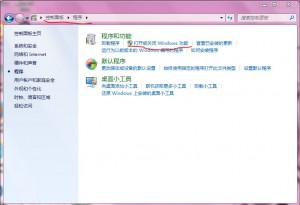
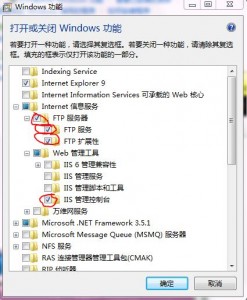
- 「控制台」→「程式和功能」→「開啟或關閉 Windows 功能」→ 勾選「Internet Information Services」→ 「FTP 伺服器」→ 「FTP 服務」→ 「FTP 延伸性」→ 「Web 管理工具」→ 「IIS 管理主控台」。
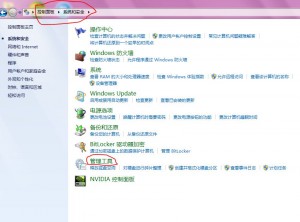
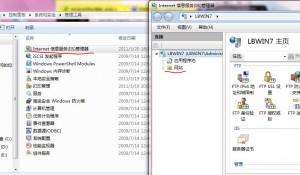
- 「控制台」→「系統及安全性」→「系統管理工具」→「Internet Information Services (IIS) 管理員」。建議建立桌面捷徑。
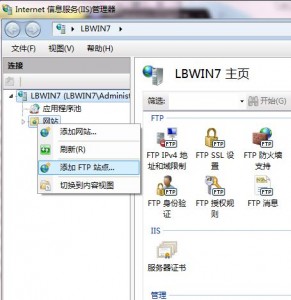
- IIS 管理員中,右鍵「網站」→「新增 FTP 網站」。
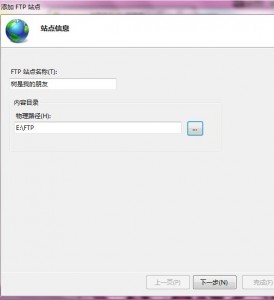
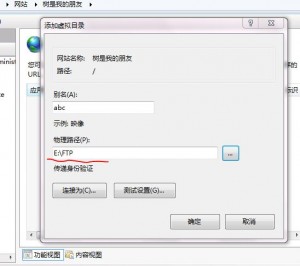
- 填寫網站名稱、實體路徑(如
E:\FTP)。
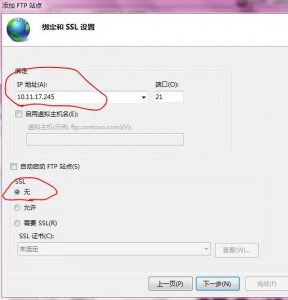
- 繫結與 SSL 設定:IP 位址選內網 IP(校園網環境)、連接埠 21、SSL 選「無」、勾選「自動啟動」。
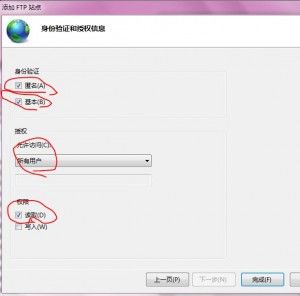
- 驗證與授權:驗證選「基本」、授權選「所有使用者」(或指定使用者)、權限勾選「讀取」「寫入」。
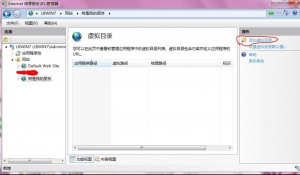
- 右鍵網站→「管理 FTP 網站」→「啟動」。
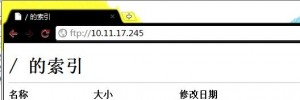
- 瀏覽器輸入
ftp://<伺服器IP> 測試連線。
注意:360 掃描修復漏洞後可能導致 FTP 服務不自動啟動,需至「電腦管理」→「服務」手動啟動「Microsoft FTP Service」。