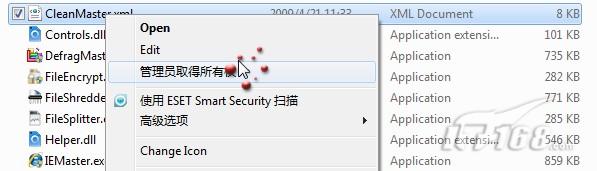
Windows 7 權限機制嚴格,常導致無法修改/刪除系統檔案。本文提供註冊檔快速新增右鍵「取得管理員擁有權」選單,並說明取得 SYSTEM 權限後的進階操作場景。
將下列內容存為 TakeOwnership.reg,雙擊匯入:
Windows Registry Editor Version 5.00

[HKEY_CLASSES_ROOT\*\shell\runas]
@="管理員取得所有權"
"NoWorkingDirectory"=""

[HKEY_CLASSES_ROOT\*\shell\runas\command]
@="cmd.exe /c takeown /f \"%1\" && icacls \"%1\" /grant administrators:F"
"IsolatedCommand"="cmd.exe /c takeown /f \"%1\" && icacls \"%1\" /grant administrators:F"

[HKEY_CLASSES_ROOT\exefile\shell\runas2]
@="管理員取得所有權"
"NoWorkingDirectory"=""

[HKEY_CLASSES_ROOT\exefile\shell\runas2\command]
@="cmd.exe /c takeown /f \"%1\" && icacls \"%1\" /grant administrators:F"
"IsolatedCommand"="cmd.exe /c takeown /f \"%1\" && icacls \"%1\" /grant administrators:F"

[HKEY_CLASSES_ROOT\Directory\shell\runas]
@="管理員取得所有權"
"NoWorkingDirectory"=""

[HKEY_CLASSES_ROOT\Directory\shell\runas\command]
@="cmd.exe /c takeown /f \"%1\" /r /d y && icacls \"%1\" /grant administrators:F /t"
"IsolatedCommand"="cmd.exe /c takeown /f \"%1\" /r /d y && icacls \"%1\" /grant administrators:F /t"
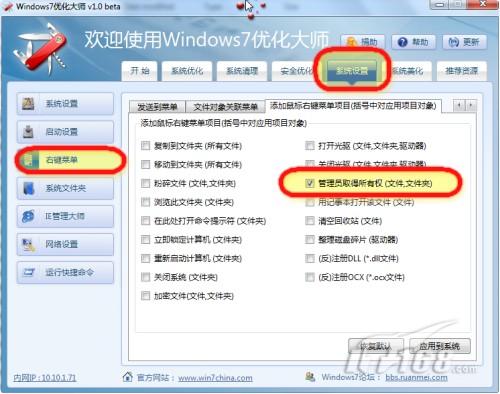
內建「右鍵選單新增取得管理員權限」功能,圖形介面操作,適合不習慣編輯登錄的用戶。
HKEY_LOCAL_MACHINE\SAM、SECURITY,查殺隱藏帳戶、木馬鍵值。System Volume Information,刪除還原點釋放空間、隱藏私密檔案。termsrv.dll 開啟多使用者遠端桌面)。
PsExec.exe -i -s cmd.exe
或:排程工作 → 建立基本工作 → 觸發器「登入時」 → 動作「啟動程式」 → 程式 cmd.exe → 參數 /k → 勾選「使用最高權限執行」→ 以 SYSTEM 帳戶執行(需匯入 XML 修改 Principal)。
explorer.exe。