Windows 7 秒開 CMD:Shift+右鍵、Win+R、快速鍵完整攻略
命令提示字元是系統管理利器,Windows 7 提供多種快速開啟方式,讓您不再透過層層選單尋找。
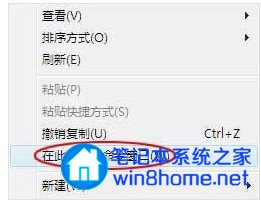
技巧一:資料夾/桌面空白處 Shift+右鍵 → 「在此處開啟命令視窗」
- 在任意資料夾空白處或桌面,按住 Shift 鍵不放。
- 滑鼠右鍵點擊空白處。
- 選單中會出現「在此處開啟命令視窗」,點選即可在該路徑直接開啟 CMD。
技巧二:Win+R → 輸入 cmd
- 按 Win+R 開啟「執行」對話框。
- 輸入
cmd 或 cmd.exe,按 Enter。
- 若需管理員權限:輸入後按 Ctrl+Shift+Enter。
技巧三:開始選單搜尋 → cmd → Ctrl+Shift+Enter(管理員模式)
- 按 Win 鍵或點選開始按鈕。
- 直接輸入
cmd。
- 在搜尋結果「cmd.exe」上按右鍵 → 「以系統管理員身分執行」,或按 Ctrl+Shift+Enter。
進階:建立「管理員命令提示字元」捷徑
- 桌面右鍵 → 新增 → 捷徑。
- 位置輸入:
cmd.exe /k "cd /d %userprofile%"(或指定常用路徑)。
- 命名為「管理員 CMD」 → 完成。
- 右鍵捷徑 → 內容 → 進階 → 勾選「以系統管理員身分執行」。
小技巧:在 CMD 中快速複製/貼上
- 啟用「快速編輯模式」:CMD 標題列右鍵 → 內容 → 選項 → 勾選「快速編輯模式」。
- 之後滑鼠選取文字即複製,右鍵即貼上。