Office 安裝不完整、登錄檔損毀、或系統優化工具誤刪 .doc/.docx 關聯的 ShellNew 機碼,導致右鍵新增無 Word 選項。
FixWord.reg。Windows Registry Editor Version 5.00
[HKEY_CLASSES_ROOT\.doc]
@="Word.Document.8"
"Content Type"="application/msword"
[HKEY_CLASSES_ROOT\.doc\OpenWithList]
[HKEY_CLASSES_ROOT\.doc\OpenWithList\WordPad.exe]
@=""
[HKEY_CLASSES_ROOT\.doc\PersistentHandler]
@="{98de59a0-d175-11cd-a7bd-00006b827d94}"
[HKEY_CLASSES_ROOT\.doc\ShellNew]
[HKEY_CLASSES_ROOT\.doc\Word.Document.6]
[HKEY_CLASSES_ROOT\.doc\Word.Document.6\ShellNew]
"FileName"="winword.doc"
[HKEY_CLASSES_ROOT\.doc\Word.Document.8]
[HKEY_CLASSES_ROOT\.doc\Word.Document.8\ShellNew]
"FileName"="winword8.doc"
[HKEY_CLASSES_ROOT\.doc\WordDocument]
[HKEY_CLASSES_ROOT\.doc\WordDocument\ShellNew]
"FileName"="winword2.doc"
[HKEY_CLASSES_ROOT\.doc\WordPad.Document.1]
[HKEY_CLASSES_ROOT\.doc\WordPad.Document.1\ShellNew]
"NullFile"=""
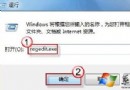
FixWord.reg → 「是」匯入登錄檔。explorer.exe,右鍵「新增」即出現「Microsoft Word 文件」。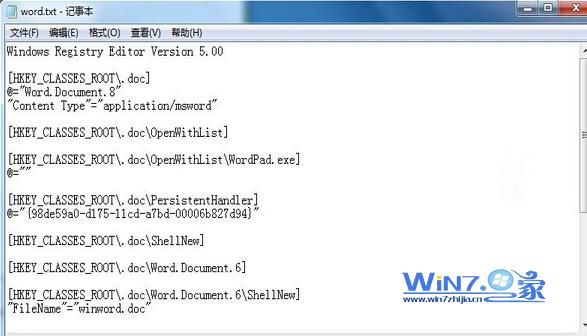
.docx 關聯,機碼路徑為 HKEY_CLASSES_ROOT\.docx。