適用情境
企業環境統一使用 Chrome/Edge、或為精簡系統元件、減少攻擊面,需停用 IE 11/10/9。
操作步驟
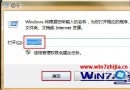
- 開啟 控制台 → 程式 → 程式和功能。
- 左側點選 開啟或關閉 Windows 功能。
- 在清單中找到 Internet Explorer 11(或對應版本),取消勾選。
- 彈出確認視窗點選 是,Windows 會移除 IE 元件,完成後要求重新開機。
- 重開機後,IE 圖示消失,
iexplore.exe 亦被移除,無法透過一般方式啟動。
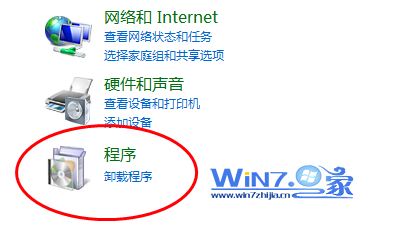 圖 1:開啟程式和功能
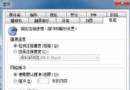
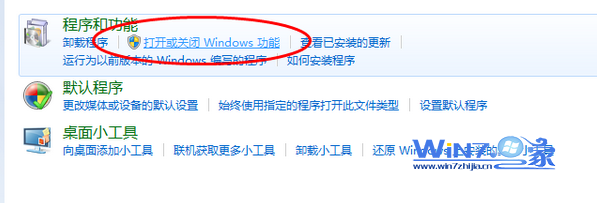 圖 2:Windows 功能視窗
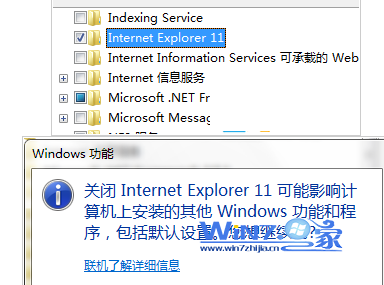 圖 3:取消勾選 Internet Explorer
補充說明
- 停用 IE 不會影響 Windows Update、說明與支援中心等依賴 Trident 引擎的系統功能(Windows 會保留核心元件)。
- 若需重新啟用,同樣路徑勾選即可,系統會自動還原元件。
- Windows 7 系統元件中 IE 深度整合,完全移除可能導致部分舊版企業網頁應用無法運作,建議先在測試環境驗證。