Win7 檔案總管/開始功能表搜尋框會記住歷史關鍵字並自動建議,方便重複搜尋但可能洩露隱私。提供兩種方式控制此功能。
gpedit.msc。使用者設定 → 系統管理範本 → Windows 元件 → Windows 檔案總管gpupdate /force 或重開機生效。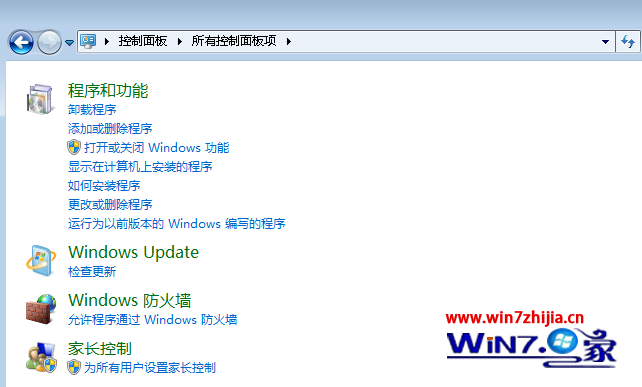
| 方式 | 影響範圍 | 搜尋效能 | 適用版本 |
|---|---|---|---|
| 群組原則 (關閉最近搜尋顯示) | 僅隱藏搜尋框下拉歷史建議 | 不影響,索引服務正常運作 | 專業版/旗艦版/企業版 |
| 關閉 Windows Search 功能 | 停用索引服務,所有搜尋改為即時掃描 | 大幅降低,大量檔案搜尋極慢 | 所有版本 (含家用版) |
僅為隱私考量,**請用方法一**;方法二屬於「殺雞取卵」,除非索引服務導致嚴重效能問題才考慮。
手動清除現有歷史:Win+R → rundll32.exe shell32.dll,Control_RunDLL shell32.dll,Options_RunDLL 0 → 「一般」頁籤 → 「清除」按鈕 (清除檔案總管歷史);或刪除登錄表 HKEY_CURRENT_USER\Software\Microsoft\Windows\CurrentVersion\Explorer\WordWheelQuery 下所有值。