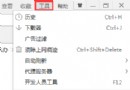
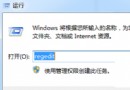
Daemon Tools 是經典虛擬光碟機軟體,但免費版 4.30.1 核心驅動 SPTD 1.58 僅支援至 Windows 7 Beta,導致正式版 Win7 無法直接安裝。解決關鍵在於先安裝更新版 SPTD 1.6 驅動。
安裝步驟
- 下載 SPTD 1.6 版(可從 DuplexSecure 官網或可靠軟體站取得),安裝並重新開機。
- 重新開機後,執行 Daemon Tools 4.30.1 安裝程式。
- 安裝過程中若出現「相容性警告」對話方塊,勾選「不再顯示此訊息」,點選「執行程式」。
- 若再次出現相容性提示,同樣勾選「不再顯示」並點選「執行程式」。
- 安裝完成,Daemon Tools 可正常掛載 ISO、建立虛擬光碟機。
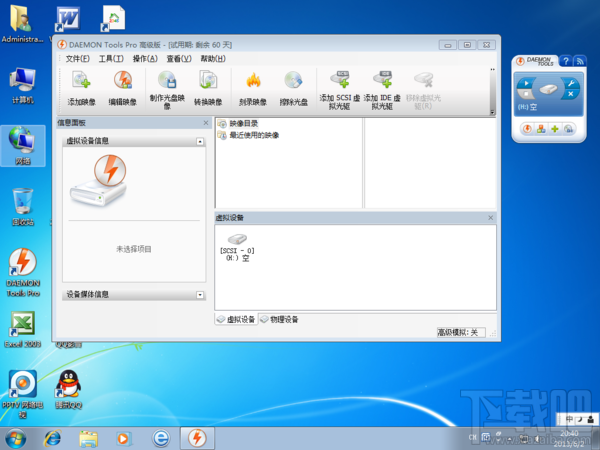
原理與延伸
- SPTD (SCSI Pass Through Direct) 為 Daemon Tools、Alcohol 120% 等虛擬光碟機共用核心驅動。Win7 RTM 需 SPTD 1.6 以上版本。
- 付費版 Daemon Tools Pro 內建新版驅動,免費版需手動更新 SPTD。
- 同理,Alcohol 120% 免費版同樣可透過更新 SPTD 1.6 解決 Win7 安裝問題。
替代建議
若不想折騰驅動,可考慮使用 WinCDEmu(開源免費、無需 SPTD、支援 Win7/8/10/11)、Virtual CloneDrive 或 Windows 8/10/11 內建的 ISO 掛載功能(雙點擊 ISO 即可掛載)。