Windows 10 專業版可透過群組原則將自動更新改為「通知下載並通知安裝」,掌握更新主動權:
設定步驟
- 按 Win + S 搜尋 「群組原則」 或輸入
gpedit.msc 開啟。
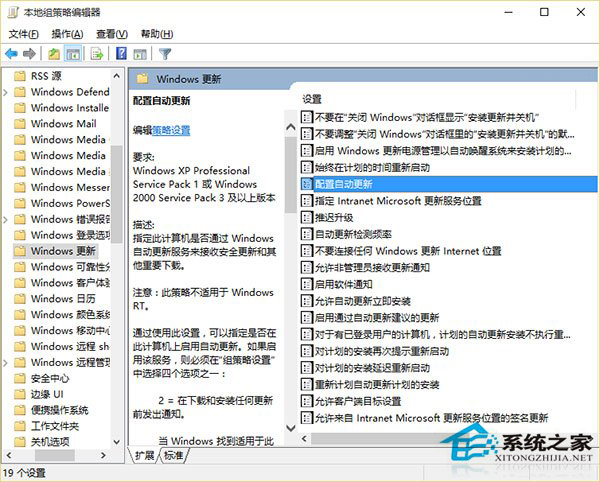
- 依序展開:電腦設定 → 系統管理範本 → Windows 元件 → Windows Update。
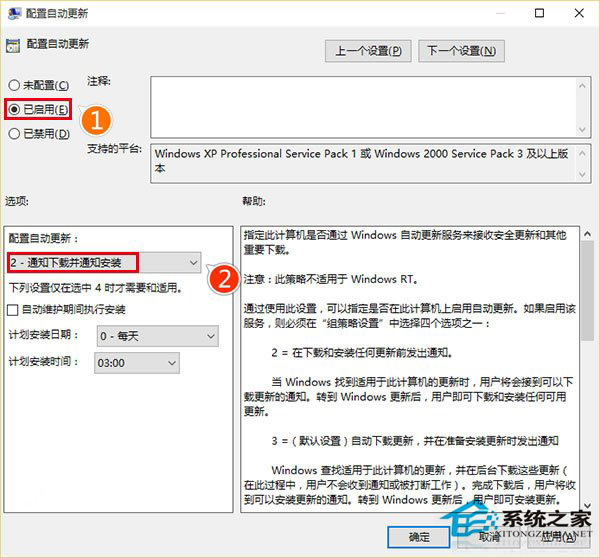
- 右側雙擊 「設定自動更新」。
- 選擇 「已啟用」,左下角下拉選單選擇 「2 - 通知下載並通知安裝」。
- 點擊「確定」,重新啟動電腦生效。
此後有新更新時,系統僅在通知區域提示「有更新可用」,使用者可自行決定何時下載安裝。家用版無群組原則,可透過登錄對應機鍵或設定「計量連線」延緩更新(非永久停用)。