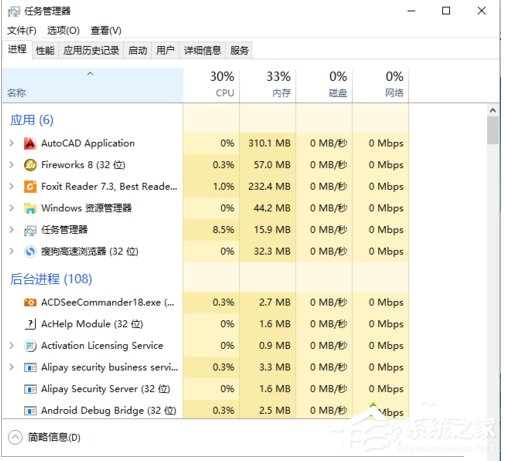
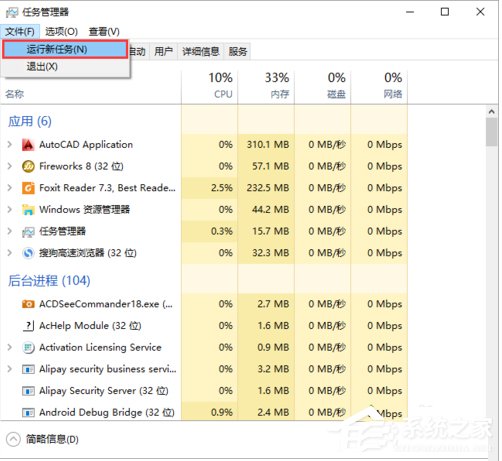
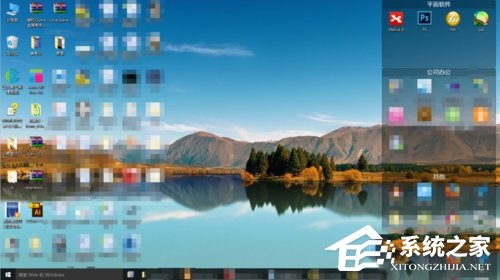
部分使用者在 Win10 上解除安裝 AutoCAD 2012 後,桌面變成純黑畫面,工作列、圖示全數消失。這是因為解除安裝過程導致 Windows 檔案總管 (explorer.exe) 異常終止。只需透過工作管理器重新啟動 explorer.exe 即可瞬間恢復。
explorer
AutoCAD 2012 較早期版本,其解除安裝程序可能未正確處理 Win10 的 Shell 擴充功能,導致 explorer.exe 當機。此法同樣適用於其他軟體解除安裝後造成的桌面消失情況。
Win10 任務列應用圖示背景透明化:修改登錄 ImmersiveIconBackgroundSize 移除底色方塊
微軟向 Win7/8 用戶推送 Win10 免費升級預約彈窗:預約後等待正式版下載安裝
Win10 安裝更新重開機卡在「正在設定 Windows 更新」怎麼辦?強制重開機後讓系統自動修復
Win10 10122 無法啟用解決法:使用 slmgr 安裝通用 GVLK 金鑰 PBHCJ-Q2NYD-2PX34-T2TD6-233PK
Win10 清理應用程式商店下載快取釋放 C 槽空間
Windows 10 開啟遠端桌面連線:系統屬性遠端標籤設定允許連線
Win10 360 優化後麥克風無聲音?將揚聲器格式改為 16 位錄音室音質
Win10 設定資料夾預設顯示圖示而非縮圖:資料夾選項勾選「一律顯示圖示」