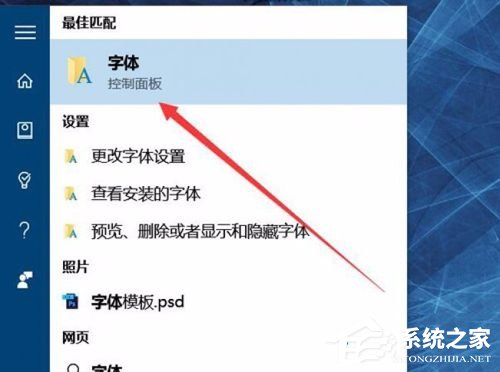
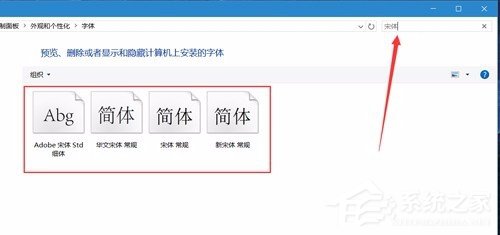
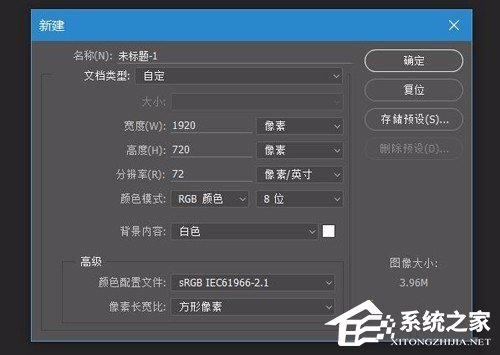
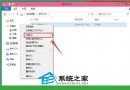
Windows 10 執行 Photoshop CC 選項/介面出現亂碼,主因系統字體「新細明體」檔案損毀或遺失。解決方法:控制台 → 「字型」→ 搜尋「新細明體」→ 全選搜尋結果 (通常 4 個檔案) → 複製到桌面 → 全選右鍵「安裝」→ 選「覆蓋」→ 重新啟動 Photoshop 即恢復正常。
此為 Photoshop 依賴系統預設中文字體渲染介面所致。
Win10 更新 KB3119142 重複安裝怎麼解決?修復 Visual C++ 2012 Redistributable
Win10 登出與鎖定電腦兩大法:開始選單右鍵、Alt+F4 快捷鍵
Win10 預覽版 10061 鎖屏黑屏問題解決方案與修復補丁
Win10 調整高解析度後字型模糊?登錄修改 Win8DpiScaling 與 LogPixels 強制 DPI 縮放修復
Win10 更換帳戶頭像教學:三步驟自訂專屬大頭貼
Windows 10 清除 IE 瀏覽器瀏覽歷史記錄的標準步驟
Win10 開機跳出 SQL Server 錯誤:停用啟動項即可解決
Win 10 設定回饋與診斷頻率:隱私權設定調整資料上傳頻率與層級,保護個人隱私