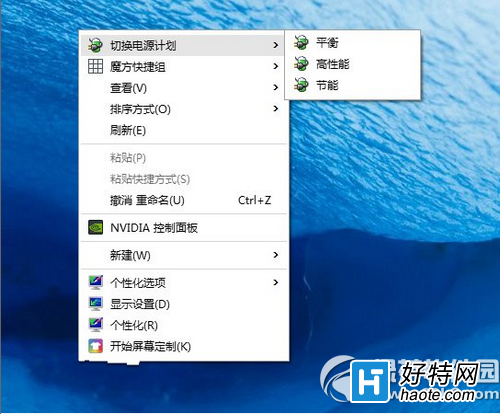
Win10 電源計劃切換需進入控制台「電源選項」,「設定」App 尚不支援。透過登錄在桌面右鍵選單加入「切換電源計劃」子選單,可一鍵在三種預設模式間切換。

Windows Registry Editor Version 5.00
; Created by https://winaero.com, reedited by https://ithome.com
[HKEY_CLASSES_ROOT\DesktopBackground\Shell\Switch Power Plan]
"Icon"="powercpl.dll"
"MUIVerb"="切換電源計劃"
"Position"="Top"
"SubCommands"=""
[HKEY_CLASSES_ROOT\DesktopBackground\Shell\Switch Power Plan\Shell\Balanced]
"MUIVerb"="平衡"
"Icon"="powercpl.dll"
[HKEY_CLASSES_ROOT\DesktopBackground\Shell\Switch Power Plan\Shell\Balanced\Command]
@="powercfg.exe /S 381b4222-f694-41f0-9685-ff5bb260df2e"
匯入後桌面右鍵即見「切換電源計劃」展開選單,含平衡、省電、高效能三項,點擊即時生效。OEM 廠商額外計劃不在本文討論範圍。