Windows 10 檢查更新或下載更新時進度條長時間停留在 0%,通常是 Windows Update 服務 或其相關元件卡住。最快解法是重新啟動 Windows Update 服務,無需重新開機、無需複雜指令。本文提供圖文步驟。
1. 關閉「設定」→「更新與安全性」視窗
若正開啟更新頁面,請先關閉,避免服務重啟衝突。
2. 開啟作業管理器
按 Ctrl+Shift+Esc,或右鍵工作列選「作業管理器」。
3. 切換至「服務」分頁
若為簡易檢視,先點擊左下角「詳細資料」展開完整視圖,再點選「服務」索引標籤。
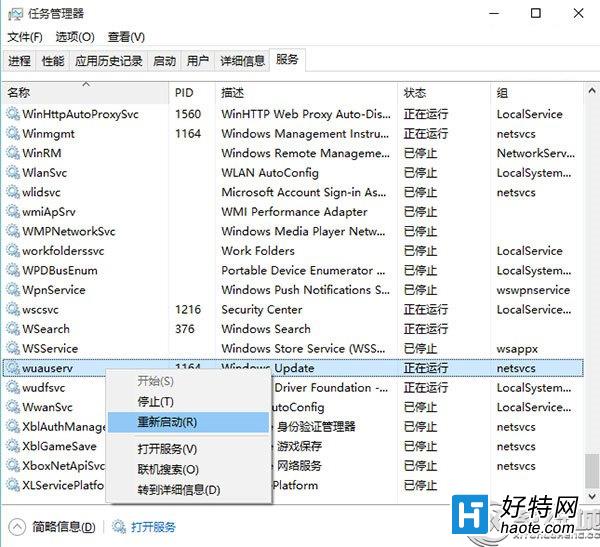
4. 找到 wuauserv 服務並重新啟動
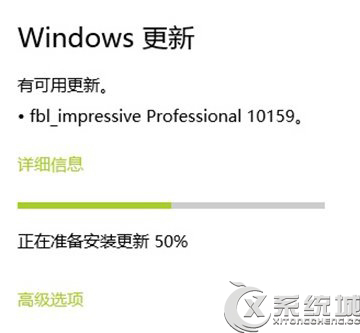
5. 回到更新頁面重新檢查
開啟「設定」→「更新與安全性」→ 「Windows Update」→ 點擊「檢查更新」,進度條應恢復正常推進。
bits (Background Intelligent Transfer Service)、cryptsvc (Cryptographic Services)、trustedinstaller (Windows Modules Installer)net stop wuauserv
net stop bits
ren C:\Windows\SoftwareDistribution SoftwareDistribution.old
net start wuauserv
net start bits
sfc /scannow
DISM /Online /Cleanup-Image /RestoreHealth
常見原因:網路不穩、更新伺服器忙碌、SoftwareDistribution 資料夾損毀、第三方防毒軟體攔截、磁碟空間不足、系統時間錯誤導致憑證驗證失敗。