Win10 內建 PowerShell 指令 Get-AppXPackage -AllUsers | Foreach {Add-AppxPackage -DisableDevelopmentMode -Register "$($_.InstallLocation)\AppXManifest.xml"} 可重註冊 UWP 應用修復商店/開始選單異常,但有時會失效(報錯、卡住、無反應)。此時可改用 DISM 修復系統映像 達到同樣效果。
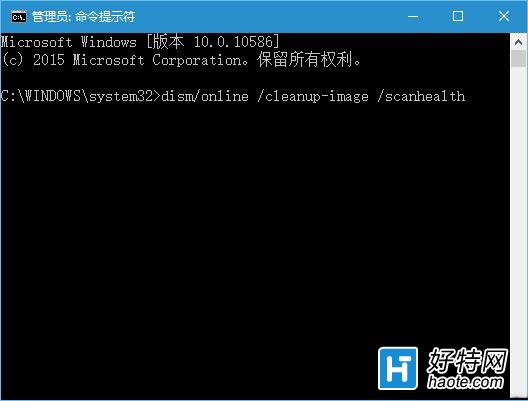
dism /online /cleanup-image /scanhealthdism /online /cleanup-image /restorehealth⚠ 必須先跑 scanhealth 再跑 restorehealth,中間不可重開機,需等待上一條指令完全結束。
/scanhealth:檢查元件存放區是否損毀/restorehealth:自動從 Windows Update 下載健康檔案替換損毀元件,間接修復 UWP 應用註冊依賴的系統元件0x80073CF9、0x80070005 等若無網路或 WU 損毀,可掛載 Win10 安裝映像 (install.wim) 指定來源:
dism /online /cleanup-image /restorehealth /source:wim:D:\sources\install.wim:1 /limitaccess(D 為安裝媒體磁碟機,:1 為映像索引號,可用 dism /get-wiminfo /wimfile:D:\sources\install.wim 查詢)
sfc /scannow 或就地升級修復