Windows XP Windows 7 Windows 2003 Windows Vista Windows 綜合教學 Linux 系統教學
Windows 10 Windows 8 Windows 2008 Windows NT Windows Server 電腦軟體教學

Win10 玩遊戲滑鼠延遲?關閉 Xbox Game Bar DVR 功能瞬間絲滑

編輯:Windows 10 系統介紹

根因分析

Windows 10 內建「Xbox Game Bar」(Win+G) 的「背景錄製」(DVR) 功能會持續佔用 GPU/CPU 資源並攔截輸入事件,導致遊戲中滑鼠移動延遲、幀率波動、甚至微凍結。關閉此功能可顯著降低輸入延遲。
一鍵關閉步驟

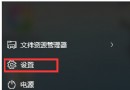
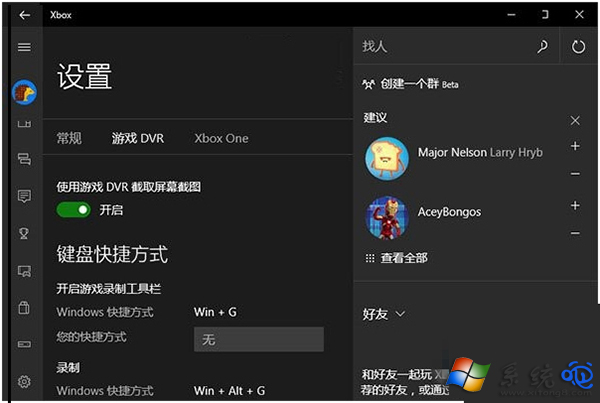
  1. 按 Win 搜尋「Xbox Game Bar」打開應用,或按 Win+G 呼出覆蓋層 → 點擊齒輪圖標「設定」。
  2. 左側選單選「遊戲 DVR」/「捕獲」(版本略有差異)。
  3. 關閉 「使用遊戲 DVR 擷取遊戲畫面截圖/錄製背景」 開關。
    關閉遊戲DVR
  4. (建議)同頁面關閉「錄製時錄製音訊」「記住這是一個遊戲」等無用選項。

進階:組策略徹底禁用(企業版/專業版)

  1. Win+R → gpedit.msc。
  2. 路徑:電腦設定 → 管理範本 → Windows 元件 → Windows Game Recording and Broadcasting。
  3. 雙擊「啟用/停用 Windows 遊戲錄製和廣播」→ 選「已停用」→ 確定。
  4. 執行 gpupdate /force 刷新策略。

註冊表法(家庭版通用)

Windows Registry Editor Version 5.00

[HKEY_CURRENT_USER\System\GameConfigStore]
"GameDVR_Enabled"=dword:00000000

[HKEY_LOCAL_MACHINE\SOFTWARE\Policies\Microsoft\Windows\GameDVR]
"AllowGameDVR"=dword:00000000

保存為 disable_gamedvr.reg 雙擊導入,重啟生效。

驗證效果

  • 進入遊戲測試滑鼠移動流暢度、點擊響應速度。
  • 打開工作管理器 → 「效能」→ GPU,觀察「Video Encode/Decode」佔用率是否歸零。
  • 若仍有延遲,檢查:滑鼠輪詢率設置 (500/1000Hz)、原生 DPI 無驅動加速、遊戲內原始輸入 (Raw Input) 開啟、關閉 Windows 「增強指標精確度」。

補充:不想失去錄製功能怎麼辦?

使用第三方錄製軟體(OBS Studio、ShadowPlay/ReLive、Bandicam),性能佔用更低、功能更豐富、不干擾遊戲輸入。

Copyright © Windows教程網 All Rights Reserved