Windows XP Windows 7 Windows 2003 Windows Vista Windows 綜合教學 Linux 系統教學
Windows 10 Windows 8 Windows 2008 Windows NT Windows Server 電腦軟體教學

Win10 網頁版 OneDrive 無法登入解決:修改 Hosts 檔案指向微軟伺服器 IP

編輯:Windows 10 系統介紹

國內用戶存取網頁版 OneDrive (onedrive.live.com) 常遇到無法連線、登入失敗,主因為 DNS 解析被污染或封鎖。透過修改 Hosts 檔案指定微軟伺服器真實 IP 可繞過限制。

Hosts 檔案新增內容

134.170.108.26 onedrive.live.com
134.170.108.152 skyapi.onedrive.live.com
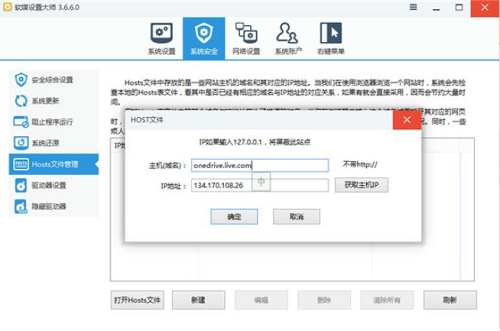
操作步驟(使用軟媒魔方設定大師)

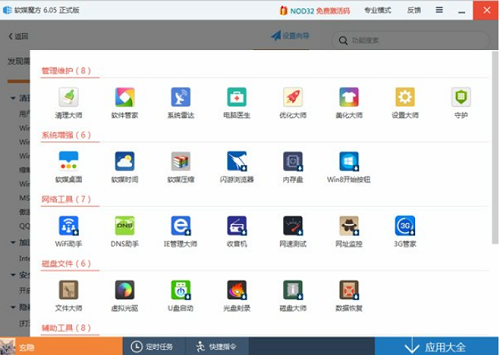
  1. 開啟 軟媒魔方 → 「應用大全」 → 「設定大師」。
  2. 選擇 「系統安全」→ 「Hosts 檔案管理」。
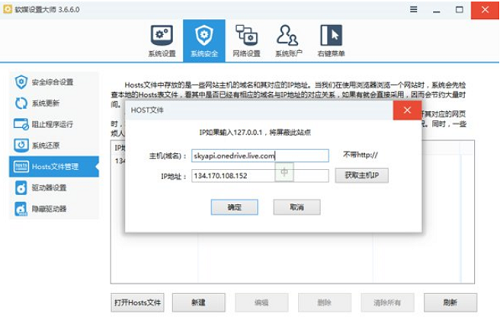
  3. 點選「新增」兩次,分別輸入上述兩行 IP 與網域對應。
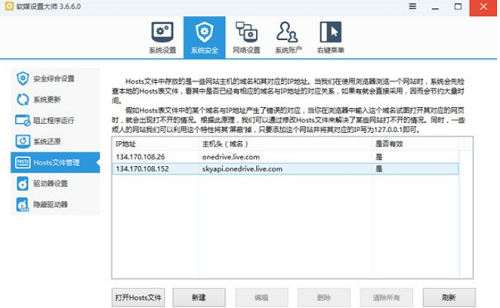
  4. 套用設定,Hosts 檔案自動備份並更新。

軟媒魔方設定大師開啟

Hosts檔案管理新增

Hosts新增內容

Hosts設定完成

手動修改 Hosts 檔案

  1. 以系統管理員身分開啟記事本。
  2. 開啟 C:\Windows\System32\drivers\etc\hosts。
  3. 在檔案末尾新增上述兩行,儲存。
  4. 執行 ipconfig /flushdns 清除 DNS 快取。

驗證

瀏覽器開啟 https://onedrive.live.com,應可正常登入、上傳、下載檔案。

適用範圍

  • Windows 10 / 8.1 / 8 / 7 / Vista / XP / Server 2003/2008/2012/2016/2019(32/64 位元)。
  • 僅解決網頁版 OneDrive 存取問題,同步用戶端(OneDrive.exe)走不同連線路徑,可能仍需其他網路優化手段。

軟媒魔方設定大師提供圖形化 Hosts 管理,避免手動編輯權限與路徑問題,推薦一般用戶使用。

Copyright © Windows教程網 All Rights Reserved