兩大路徑對比
| 維度 | VirtualBox/VMware 虛擬機 | Boot Camp 雙系統 |
|---|
| 運行模式 | macOS 進程內虛擬化,無需重啟切換 | 原生雙啟動,開機選單二選一 |
| 硬件要求 | 建議 ≥ 8GB 內存(分 4GB+ 給 VM) | 4GB 內存即可,分區獨立 |
| 性能 | CPU/內存虛擬化損耗 ~10-20%,GPU 直通複雜 | 原生性能,顯卡/磁盤/網絡零損耗 |
| 管理 | 快照/備份/遷移極便利,文件共享目錄無縫 | 分區獨立,macOS 大版本升級可能損壞 Win 分區引導需修復 |
| 適用場景 | 輕量開發/測試/辦公/跨平台文件互通 | 游戲/專業圖形/高負載/長期主力 Win 環境 |
VirtualBox 安裝要點
- 下載 Win10 ISO(微軟官網)。
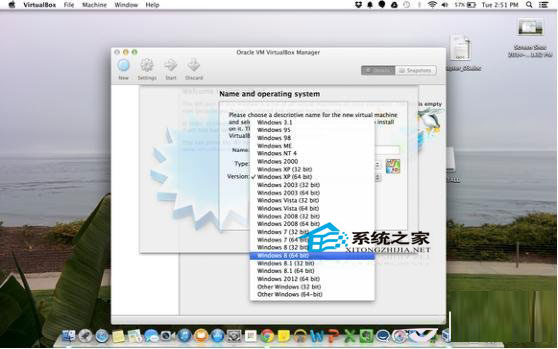
- 新建 VM → 類型選「Windows 8/8.1 (64-bit)」(VirtualBox 暫無 Win10 選項)。
- 內存分配 ≥ 2048MB,視宿主調整;虛擬硬盤 ≥ 25GB(動態分配)。
- 掛載 ISO → 啟動 → 選「自定義:僅安裝 Windows」全新安裝。
- 安裝完成 → 安裝 VirtualBox Guest Additions 獲取共享剪貼板/拖拽/自適應分辨率/共享目錄。
Boot Camp 安裝要點
- ISO 制作啟動 U盤(Boot Camp 助理/Etcher/Rufus)。
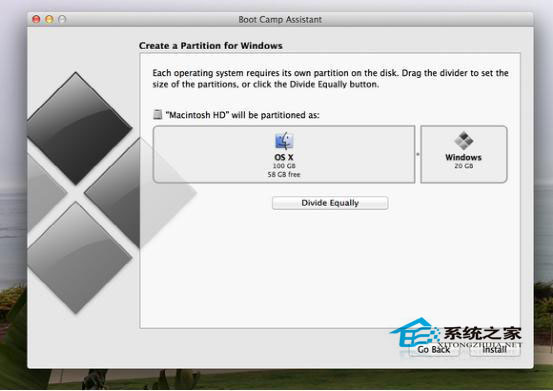
- 啟動 Boot Camp 助理 → 劃分 ≥ 20GB Windows 分區。
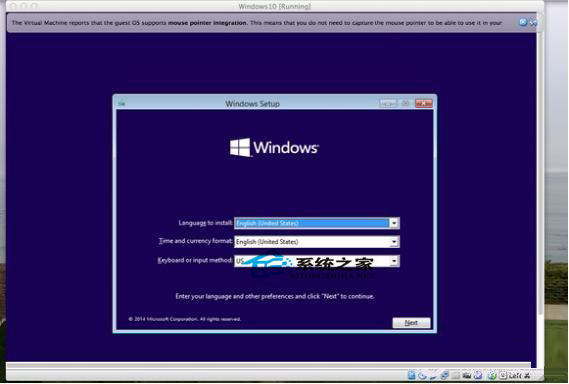
- 重啟進入 Windows 安裝程序 → 選目標分區格式化安裝。
- 重啟按住 Option 鍵選啟動系統(macOS/Windows)。
實測體驗
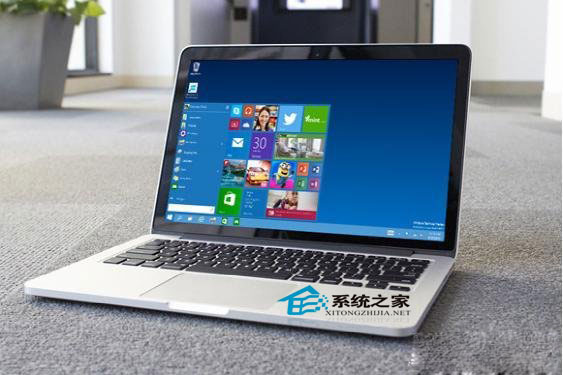
預覽版兼容性優秀,Mac 硬件驅動(鍵盤/觸控板/攝像頭/音頻/WiFi/藍牙)均正常工作,Retina 高分屏縮放清晰。