Windows XP Windows 7 Windows 2003 Windows Vista Windows 綜合教學 Linux 系統教學
Windows 10 Windows 8 Windows 2008 Windows NT Windows Server 電腦軟體教學

Win10 刪除休眠檔案 hiberfil.sys 釋放 C 槽空間:powercfg 指令完整教學

編輯:Windows 10 系統介紹

休眠檔案 hiberfil.sys 佔用等同實體記憶體大小的 C 槽空間 (如 16GB RAM 則佔 16GB),且無法像分頁檔 pagefile.sys 那樣移動磁碟。若不使用休眠功能,可徹底關閉並刪除此檔案。
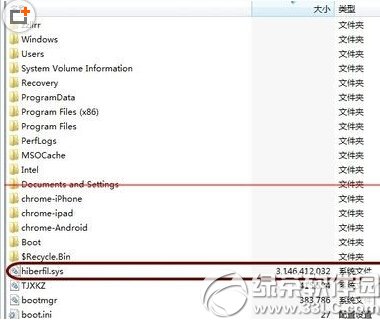
查看檔案大小

  1. 資料夾選項 → 「檢視」 → 取消勾選「隱藏受保護的作業系統檔案」。
  2. 或使用 WinRAR 開啟 C 槽根目錄直接查看。

hiberfil.sys 檔案大小

刪除步驟 (需管理員權限)

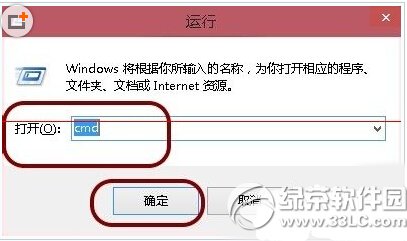
  1. 按 Win+R 輸入 cmd → Ctrl+Shift+Enter 開啟管理員命令提示字元。
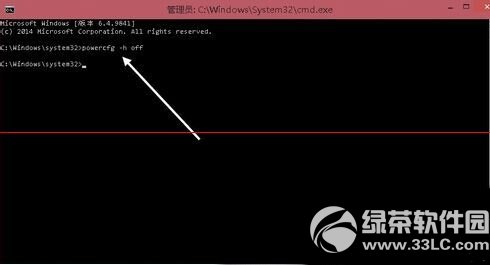
  2. 輸入 powercfg -h off 按 Enter。
  3. 系統即刻關閉休眠功能並自動刪除 hiberfil.sys。

執行 cmd

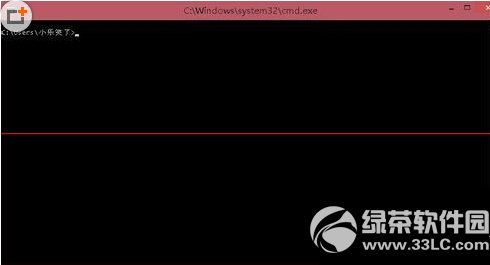
命令提示字元介面

powercfg -h off 執行結果

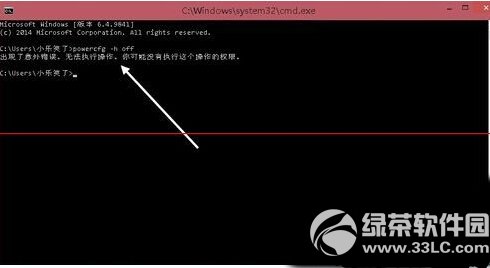
若提示權限不足

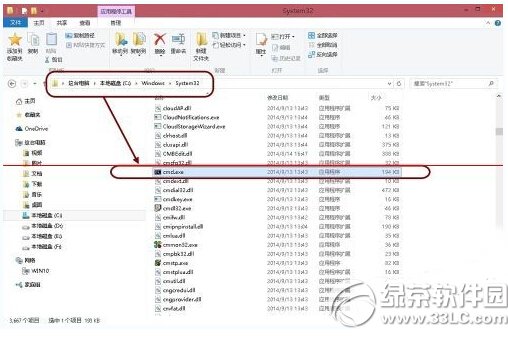
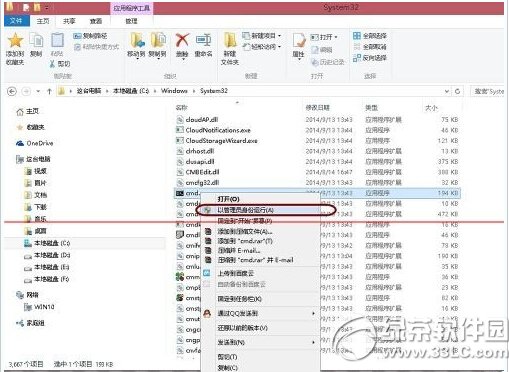
  1. 檔案總管前往 C:\Windows\System32 找 cmd.exe 右鍵 → 「以系統管理員身分執行」。
  2. 或「開始」→「所有應用程式」→「Windows 系統」→「命令提示字元」右鍵 → 「以系統管理員身分執行」。
  3. 再執行 powercfg -h off。

權限不足提示

以管理員身分執行 cmd

成功刪除

恢復休眠功能

管理員命令提示字元輸入 powercfg -h on 即可重新啟用休眠並重建檔案。

Copyright © Windows教程網 All Rights Reserved