Windows 10 內建 Cortana 智慧助手,提供語音搜尋、行程管理、提醒等功能。但桌面裝置使用者多偏好鍵盤滑鼠操作,且擔心語音/輸入資料被收集。本文教您透過隱私設定徹底停用 Cortana。
🔧 關閉步驟 (適用 Build 10074 及後續正式版)
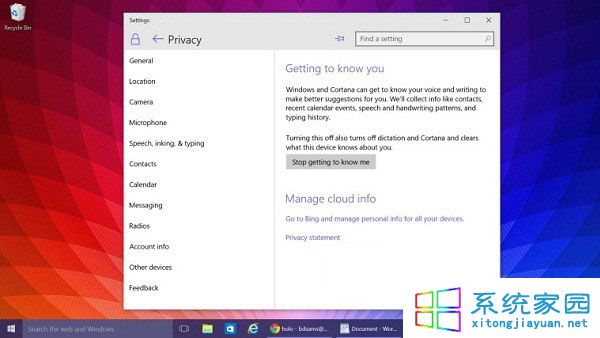
- 開啟「設定」→ 「隱私權」 (Privacy)。
- 左側選單選擇 「語音、輸入與手寫」 (Speech, inking & typing)。
- 點選 「停止了解我」 (Stop getting to know me) / 「關閉語音服務與輸入建議」。
- 確認提示視窗,Cortana 即被停用,工作列搜尋框恢復為一般搜尋。
🔍 進階:徹底移除雲端資料
停用本地 Cortana 後,已上傳至雲端的個人化資料(筆記本、興趣、位置歷程)需另行清除:
- 登入 Microsoft 隱私儀表板。
- 「瀏覽歷程」→ 「清除 Cortana 資料」。
- 或在 Cortana 設定中登出 Microsoft 帳號,改用本地帳號登入 Windows。
⚠ 注意事項
- 停用後無法使用「嘿 Cortana」喚醒、語音指令、主動式提醒等功能。
- 搜尋功能保留(本地檔案、設定、應用、網頁搜尋)。
- 企業版/教育版可透過群組原則
Computer Configuration > Administrative Templates > Windows Components > Search > Allow Cortana 設為「停用」強制關閉。