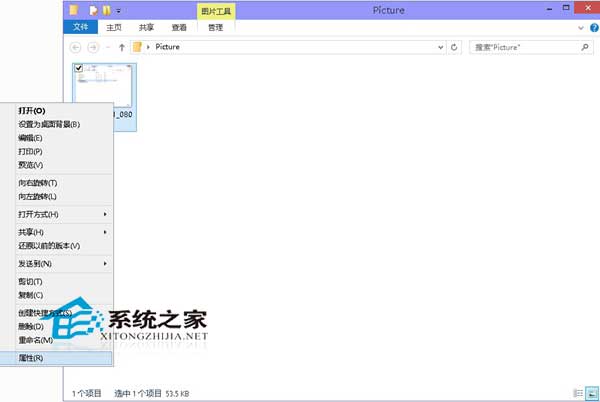
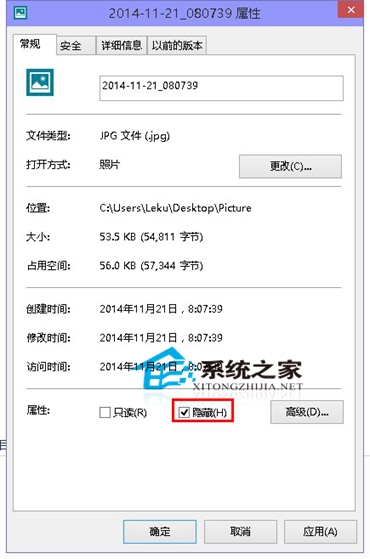
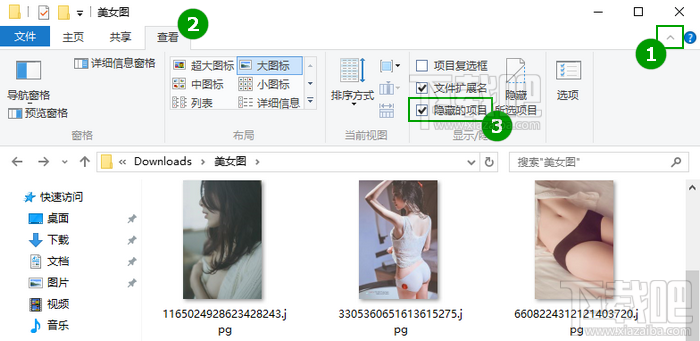
Windows 10 隱藏檔案/資料夾操作簡單,適合保護隱私檔案、整理視覺雜訊。隱藏後需開啟「隱藏的項目」才能看見。
在「檢視」→「選項」→「檢視」索引標籤,取消勾選「隱藏受保護的作業系統檔案 (建議)」,可看見系統關鍵隱藏檔 (如 pagefile.sys, hiberfil.sys, $Recycle.Bin 等),操作極度謹慎,建議僅檢視不修改。
pagefile.sys
hiberfil.sys
$Recycle.Bin
attrib +h +s "檔案/資料夾路徑"
attrib -h -s "路徑"
Windows 10 裝置管理器在哪?四種最快開啟方式
Windows 10 應用程式商店提示「裝置數量已達上限」?一鍵移除舊裝置解決
Win10 調整朗讀者 (Narrator) 語速、音量、音調:設定 → 語音 → 自訂參數
微軟全球推送 Win10 免費升級預約通知:3GB 安裝包、平滑升級、不想升級怎麼關閉
Windows 10 介面恢復 Win 7/8 風格:登錄關閉鎖定畫面與現代化元素
Windows 10 截圖動畫失效 (螢幕不變暗) 解決方案:兩大設定檢查點
Win10 右鍵選單新增「加密」快速加密檔案/資料夾:登錄表 EncryptionContextMenu=1 一鍵啟用 EFS
Win10 魯大師無法開啟?相容性模式切換修復教學