Windows XP Windows 7 Windows 2003 Windows Vista Windows 綜合教學 Linux 系統教學
Windows 10 Windows 8 Windows 2008 Windows NT Windows Server 電腦軟體教學

升級 Win10 後 Office 2013 失效?兩種激活恢復法教學

編輯:Windows 10 系統介紹

為什麼升級 Win10 後 Office 2013 要重新激活?

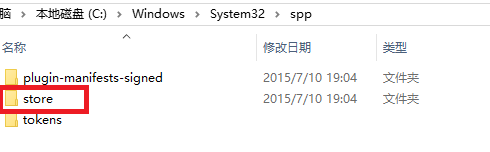
Windows 10 升級會替換系統核心檔案,導致 Office 2013 的授權狀態(儲存於 C:\Windows\System32\spp\store)遺失或失效。以下提供兩種情境下的修復方案。

方法一:升級前已備份 store 資料夾(預防性操作)

  1. 升級前,複製 C:\Windows\System32\spp\store 整個資料夾至備份位置(如 D 槽或 USB)。
  2. 完成 Win10 升級並進入桌面。
  3. 關閉所有 Office 程式,將備份的 store 資料夾覆蓋回原路徑 C:\Windows\System32\spp\store。

  4. 重新開啟 Office,應自動恢復激活狀態。

備份store資料夾路徑

升級Win10

覆蓋store資料夾

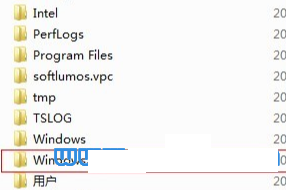
方法二:升級後才發現未激活,利用 Windows.old 恢復(補救措施)

升級安裝會將舊系統移至 C:\Windows.old(約 10-20 GB),其中保留舊版 store 資料夾。

  1. 開啟 C:\Windows.old\Windows\System32\spp\store。
  2. 複製該 store 資料夾。
  3. 關閉所有 Office 程式,貼上覆蓋至 C:\Windows\System32\spp\store。
  4. 啟動 Office 檢查激活狀態。

Windows.old資料夾位置

在Windows.old中找到store

注意事項

  • 覆蓋過程務必關閉所有 Office 程式,否則檔案被鎖定無法寫入。
  • Windows.old 會在升級後 10 天(或執行磁碟清理)自動刪除,請盡快操作。

  • 若兩種方法皆無效,可能需重新輸入產品金鑰或使用官方修復工具。
Copyright © Windows教程網 All Rights Reserved