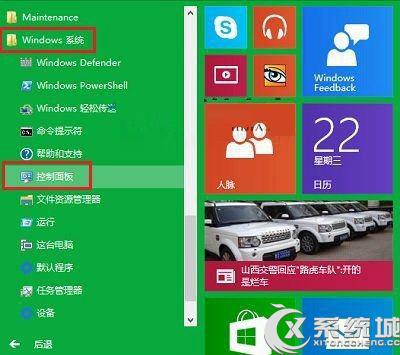
步驟 1:開始 → 所有應用程式 → 控制台
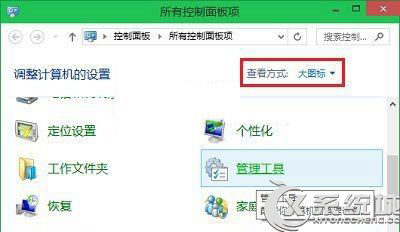
步驟 2:控制台 → 大圖示 → 管理工具
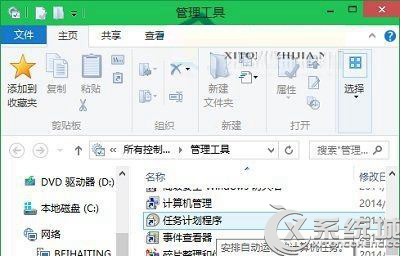
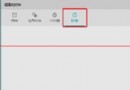
步驟 3:管理工具 → 雙擊任務排程器
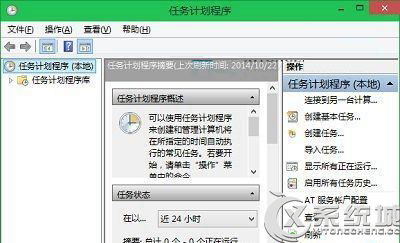
任務排程器主視窗
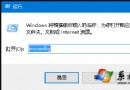
taskschd.msc
Win10 小娜預設 Bing 搜尋怎麼改 Google/百度?Chrome 擴充功能攔截重導向實作
Windows 10 設定中應用程式顯示「無法使用」磁碟空間?屬正常現象,非錯誤
Win10 安裝更新導致系統故障怎麼辦?Shift+重啟進入疑難排解卸載更新
微軟全球推送 Win10 免費升級預約通知:3GB 安裝包、平滑升級、不想升級怎麼關閉
Win10 修改管理員帳號導致登錄編輯器無法開啟?DISM 修復系統映像 + UAC 調整雙管齊下
Win10啟動《爐石傳說》顯示Current Time錯誤?建立本地帳號繞過登入限制
Win10 清理登錄垃圾的兩種推薦工具教學
Win10 TH2 更新緩慢/卡頓/失敗?重置 Windows Update 服務與快取 (同 22558)