Windows XP Windows 7 Windows 2003 Windows Vista Windows 綜合教學 Linux 系統教學
Windows 10 Windows 8 Windows 2008 Windows NT Windows Server 電腦軟體教學

Windows 10 關閉 SmartScreen 篩選器:控制台與登錄表雙重教學

編輯:Windows 10 系統介紹

問題現象

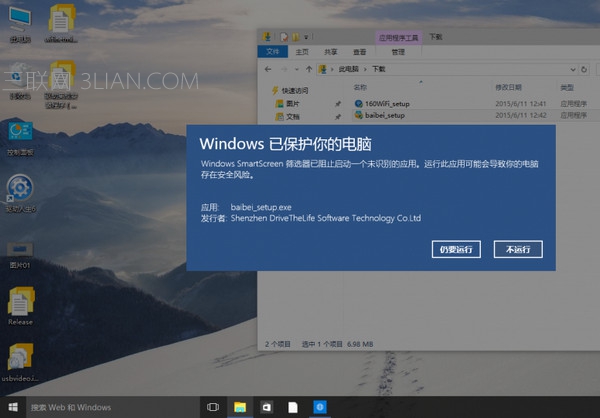
執行未簽名/低信譽應用程式時,SmartScreen 彈出「Windows 已保護您的電腦」阻擋視窗,需點擊「更多資訊」→「仍要執行」才能繼續,干擾開發與測試流程。
方法一:控制台關閉 (圖形介面)

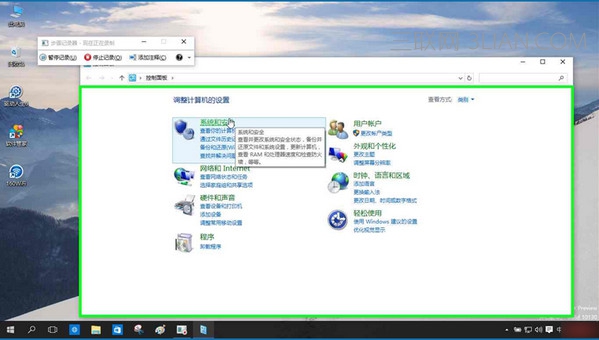
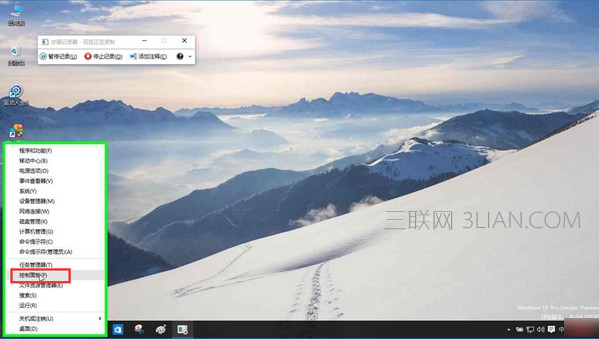
  1. 右鍵「開始」→「控制台」 (或 Win+X → 控制台)。
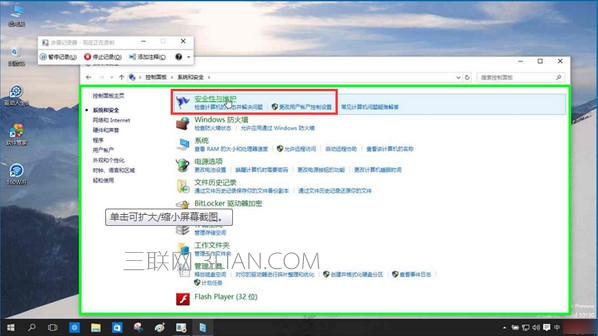
  2. 「系統與安全性」→「安全性與維護」。
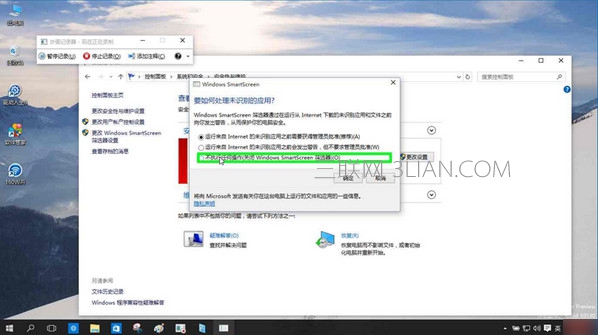
  3. 左側點擊「變更 Windows SmartScreen 篩選器設定」。
  4. 選擇「不執行任何動作 (關閉 Windows SmartScreen 篩選器)」→ 確定。

SmartScreen 阻擋視窗

開啟控制台

系統與安全性

安全性與維護

變更 SmartScreen 設定

選擇不執行任何動作

方法二:登錄表關閉 (適合腳本部署)

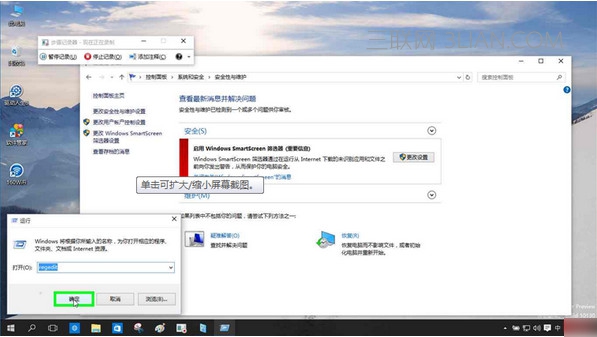
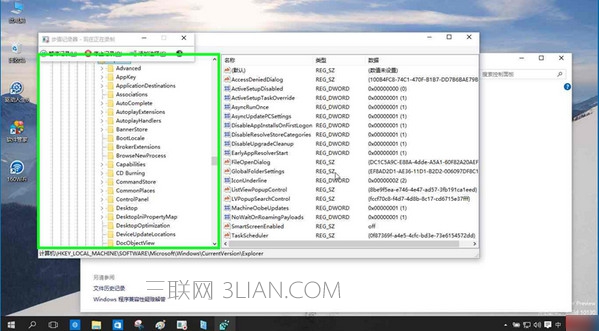
  1. 執行 regedit 開啟登錄表編輯器。
  2. 定位至:
    HKEY_LOCAL_MACHINE\SOFTWARE\Microsoft\Windows\CurrentVersion\Explorer
  3. 右側找到或新增字串值 SmartScreenEnabled,數值資料設為 Off。
  4. 重新開機或重新登入生效。

開啟登錄表編輯器

修改 SmartScreenEnabled 值

SmartScreenEnabled 可能數值

數值行為
RequireAdmin需要系統管理員核准 (預設)
Prompt提示使用者決定 (舊版預設)
Off完全關閉 SmartScreen
Warn警告但允許執行 (Windows 10 1703+)

安全性提醒

關閉 SmartScreen 會降低對惡意軟體、網路釣魚網站的防護能力。建議僅在測試環境、開發機器關閉;日常使用電腦請保持啟用。

Copyright © Windows教程網 All Rights Reserved